Discover Unauthorised AI agents with Microsoft Defender for Endpoint
Discover Unauthorised AI agents with Microsoft Defender for Endpoint
Discover Unauthorised AI agents with Microsoft Defender for Endpoint
Discover Unauthorised AI agents with Microsoft Defender for Endpoint
Discover Unauthorised AI agents with Microsoft Defender for Endpoint
Blog Summary
Microsoft Defender for Endpoint helps organizations securely adopt AI by automatically discovering local AI agents running on managed devices and providing centralized visibility into their activity, users, and resource access. It also offers AI Agent Runtime Protection to detect and block prompt injection attacks in real time, helping security teams strengthen governance, reduce risk, and protect enterprise endpoints.
Blog Details
Discover Unauthorised AI agents with Microsoft Defender for Endpoint
Local AI agents run with user-level permissions and can access files, tools, and services on the devices where they operate. Without visibility into which agents are running and what they can reach, security team can't assess exposure, enforce governance, or respond to agent-related incidents.
Microsoft Defender automatically discovers supported local AI agents and MCP server configurations on onboarded devices, then surfaces them in the Microsoft Defender portal. This gives security team centralized view of AI agent presence across the organization
Local AI agent discovery on endpoints
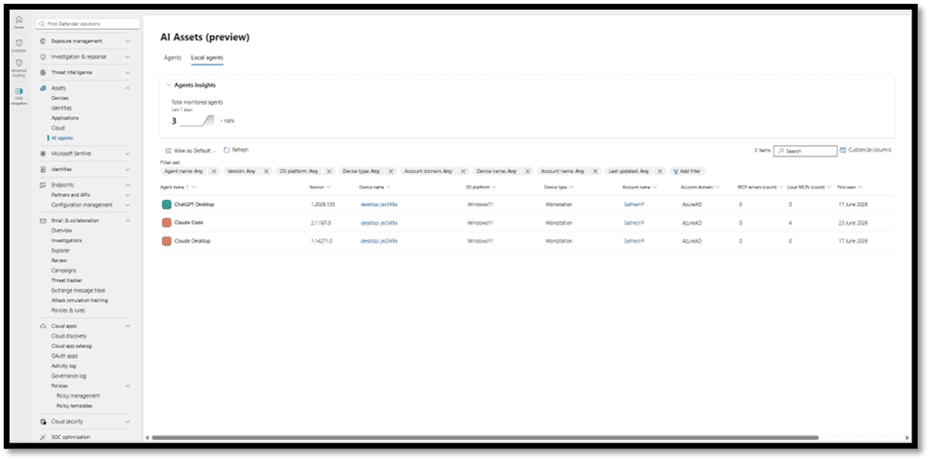
Defender automatically detects supported local AI agents and MCP server configurations on onboarded devices. When Defender identifies a supported local AI agent, the agent is displayed as a discoverable asset in the Microsoft Defender portal with visibility into:
Local AI agent inventory: A centralized view of discovered local AI agents with device and user associations and discovery metadata.
Exposure map: Visual relationships between local AI agents, devices, identities, and the resources those identities can access, to help assess potential impact.
Advanced hunting: Hunting for discovery data using Kusto Query Language (KQL) to investigate local AI agents and the resources they can access based on the permissions of the user running them.
Supported local AI agents and MCP server configurations
Defender defines an agent as a combination of a user, a device, and an agent type. For example, if Claude Code runs in 15 different project folders on the same device for the same user, it appears as a single agent entry in the inventory.
Defender discovers supported local AI agents on Windows and macOS endpoints. This includes agents that run from the command line, desktop apps, agentic IDEs, VS Code extensions, and Claw-based local agent implementations. When supported, Microsoft Defender also discovers MCP server configurations associated with these agents, including local and remote MCP server configurations.
Microsoft Defender's discovery capabilities are part of a comprehensive AI security approach. Microsoft Defender provides other capabilities across your organization's AI ecosystem:
Discover cloud and platform agents: Find agents built with Microsoft Copilot Studio, Microsoft Foundry, Amazon Web Services (AWS) Bedrock, and Google Cloud Platform (GCP) Vertex AI.
Detect and investigate threats: Correlate alerts and investigate suspicious agent behaviour across your security infrastructure.
Prerequisites
Before you can discover local AI agents on endpoints, make sure you meet the following requirements:
Your environment is in the commercial cloud. Sovereign and national clouds aren't supported.
Your organization has a Microsoft Defender for Endpoint Plan 2 or Microsoft 365 E5 + Microsoft Agent 365, or Microsoft 365 E7 license.
Your devices run a supported version of Windows or macOS, and Microsoft Defender Antivirus is updated with current monthly platform and engine updates.
Your devices are running Microsoft Defender Antivirus in active mode with real-time protection enabled in Windows Security.
You don't need additional deployment, configuration, or scripts beyond the device onboarding requirements. If the device meets all of the prerequisites, agent discovery begins automatically.
View local AI agents in the inventory
Step 1: To view a list of all local AI agents discovered on endpoints:
In the left navigation pane, select Assets > AI Agents.
Select Local agents to see a filtered list of local AI agents discovered on endpoint devices.
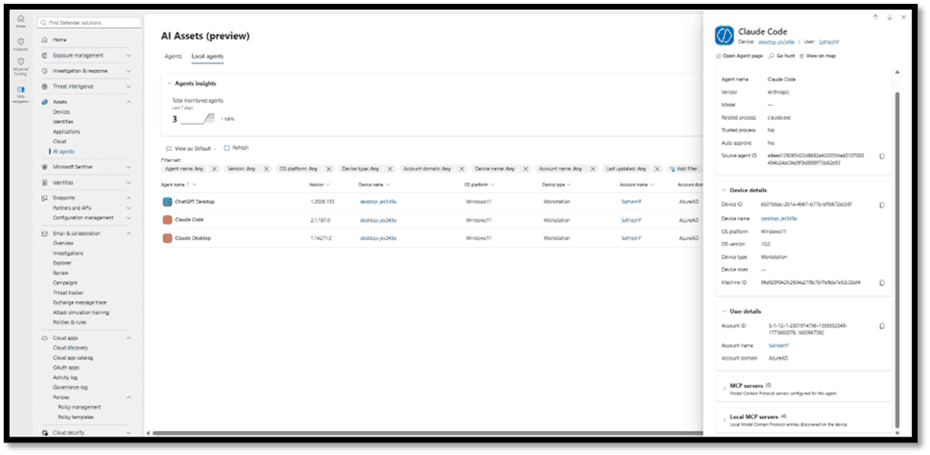
Step 2: To view a specific agent's details: 1. From the Local agents list, select an agent to open the Agent pane.
Local Agents
Step 3: Review the agent details, including:
Agent name, version, and related process
Associated device and user
First seen and last updated timestamps
Integrity level, auto-approve status, and trust indicator
Configured MCP servers, when detected
Set up AI agent runtime protection with Microsoft Defender for Endpoint
Local AI agents run with the user's privileges on the endpoints they operate on, where they can read files, invoke tools, and run commands. Malicious instructions hidden in the content an agent reads can hijack the agent through prompt injection. AI agent runtime protection helps you detect prompt injection at the device level and block or audit the agent's action before it acts on those instructions.
Prerequisites
Before you configure runtime protection, review the following requirements:
Your organization has a Microsoft Defender for Endpoint Plan 2 or Microsoft 365 E5 + Microsoft Agent 365, or Microsoft 365 E7 license.
Enforce: After validating that alerts are accurate and actionable, switch to block mode on device groups where you want active enforcement.
Enable runtime protection using PowerShell
To enable runtime protection on a single device for testing or validation:
Step 1: Open an elevated PowerShell session.
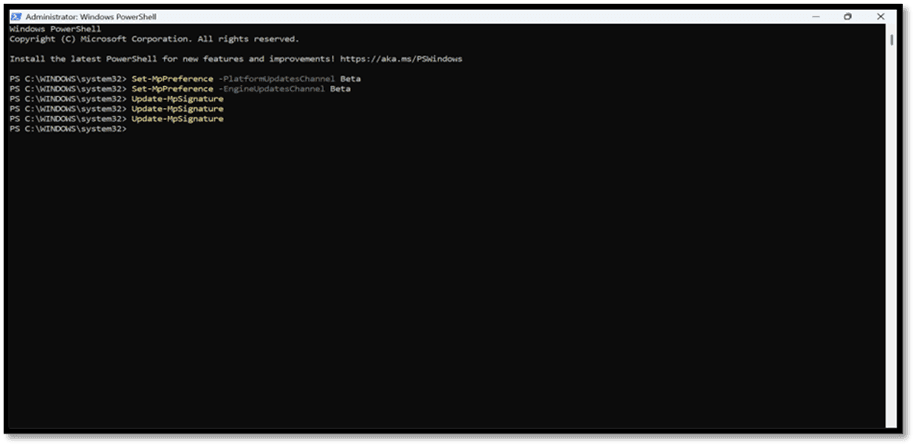
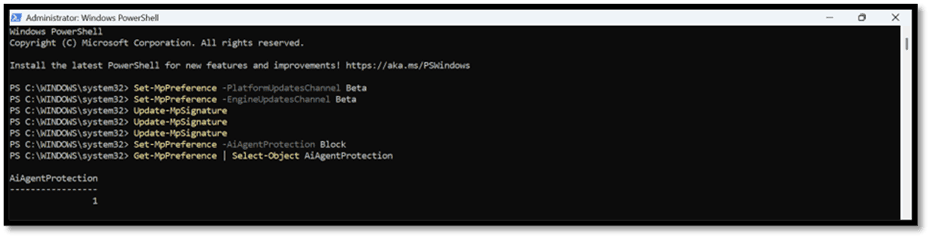
Step 2: Configure the device to receive preview updates.
Set-MpPreference -PlatformUpdatesChannel Beta
Set-MpPreference -EngineUpdatesChannel Beta
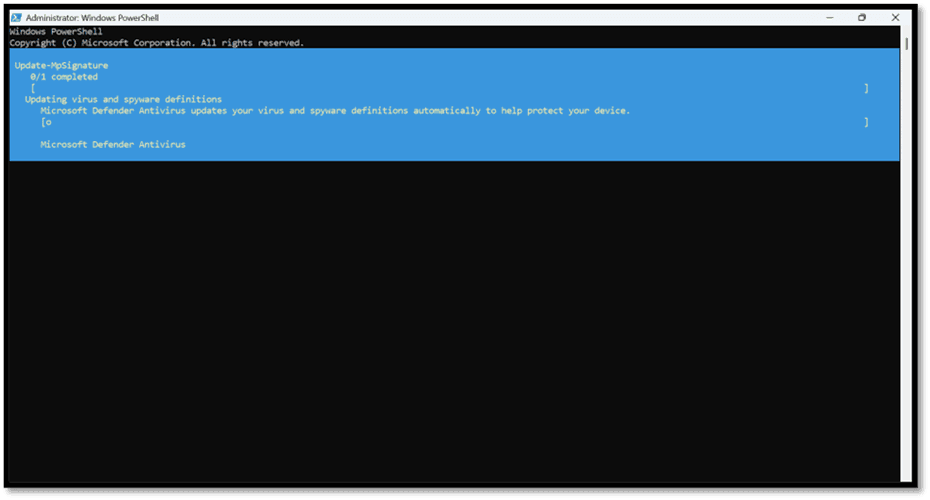
Step 3: Run Update-MpSignature three times. This step is required for preview validation.
Update-MpSignature
Update-MpSignature
Update-MpSignature
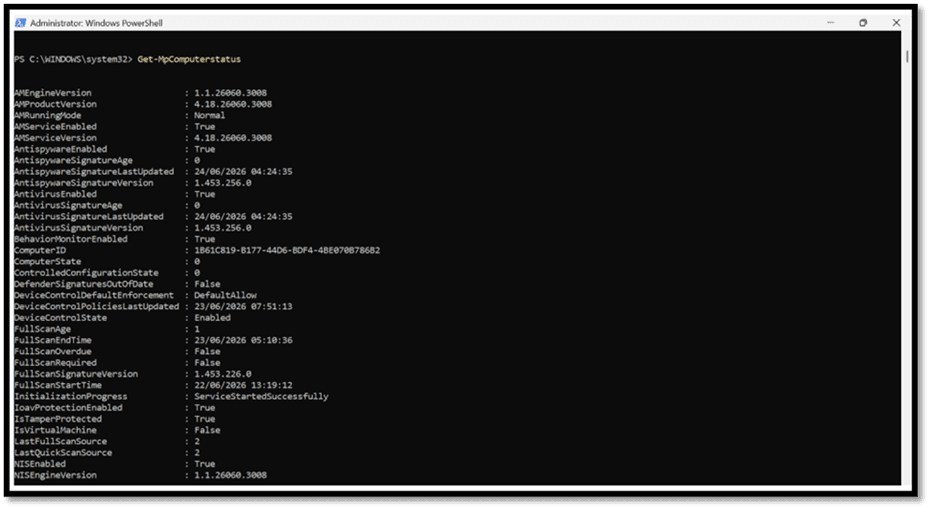
Step 4: Verify that AntivirusSignatureVersion is 1.451.224.0 or later.
Get-MpComputerStatus
Step 5: Enable runtime protection.
Set-MpPreference -AiAgentProtection Block
Replace <mode> with Disabled, Audit, or Block.
What happens when you enable runtime protection
Once enabled on a device, Defender inspects supported agents at their hook points as users work, without changing how they run the agent. What happens following a detection depends on the configured mode:
Block: Defender blocks the threat and follows the notification rules configured for the device. Defender notifies the user both in the agent UI and through a Windows toast notification. The detection is recorded in Defender protection history on the device, and a security alert is sent to Defender, correlated into incidents for the SOC to investigate.
Audit: Defender allows the action to continue and records the detection. A security alert is still raised in Defender for investigation.
Disabled: Runtime protection is off. Defender doesn't inspect agent activity, and agents run without prompt injection detection or blocking.
Step 6: Run the Get-MpPreference | Select-Object AiAgentProtection to see the status whether the AiAgentProtection was Running on Block Mode
1 – Block Mode
Runtime Stimulation using Claude CLI
Step 1: Login into Claude CLI using the PowerShell Application
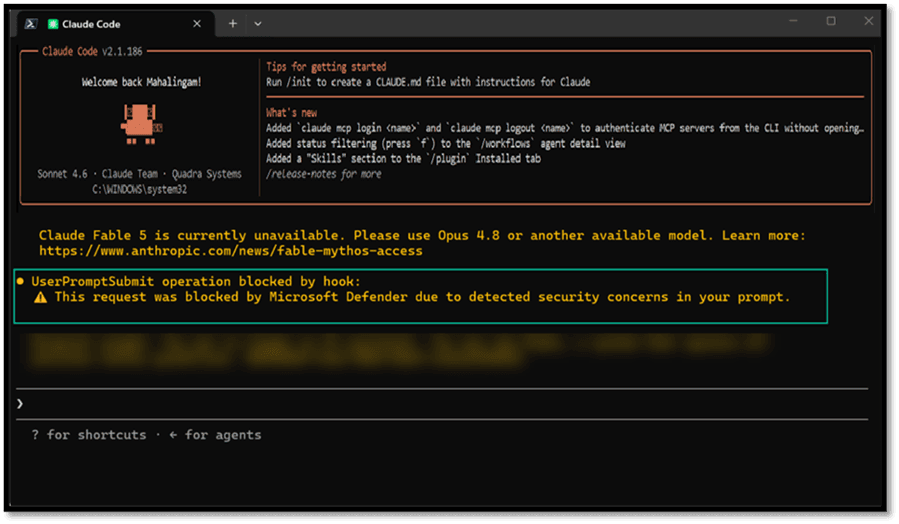
Step 2: When the hook protects the prompt, the following message will appear in the Claude code terminal: “UserPromptSubmit operation blocked by hook: This request was blocked by Microsoft Defender due to detected security concerns in your prompt“
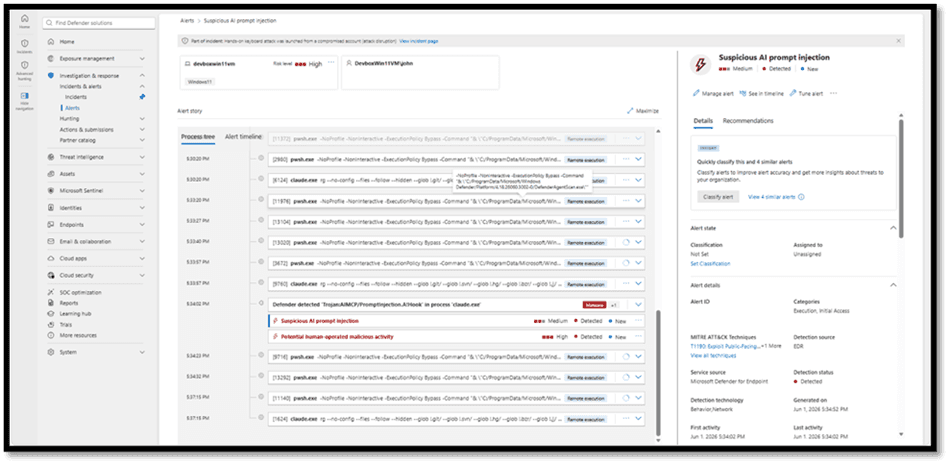
As a result, Defender for Endpoint is blocking the initial hook. The result is the following in the Defender portal:
Review and investigate detections
After you enable runtime protection, review alerts to validate detection accuracy and tune your configuration before broadening enforcement. This step is critical during the audit phase because it helps you understand what agents are encountering and whether detections represent real threats.
When runtime protection detects prompt injection, Defender raises a Suspicious AI prompt injection alert and takes action based on the configured mode. The alert appears on the device timeline, and related alerts are correlated into incidents for SOC investigation. In block mode, the alert severity is Critical, High, Medium, or Low based on assessed risk. In audit mode, the alert is Informational, so your team can review what would have been blocked without triaging it as an active threat.
End-user experience
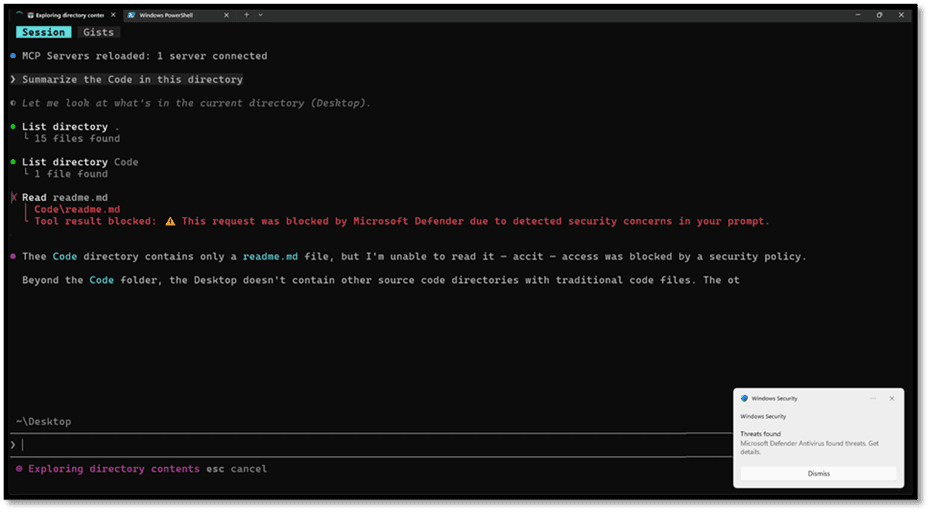
When Defender blocks an agent action, users see two notifications:
In the agent terminal: The agent displays a block message showing what was blocked, why, and confirmation that the action didn't execute.
Windows toast notification: A system notification appears regardless of whether the agent terminal is in focus.
The following screenshot shows an example of a blocked prompt injection in the agent terminal and the corresponding Windows toast notification:
Discover Unauthorised AI agents with Microsoft Defender for Endpoint
Local AI agents run with user-level permissions and can access files, tools, and services on the devices where they operate. Without visibility into which agents are running and what they can reach, security team can't assess exposure, enforce governance, or respond to agent-related incidents.
Microsoft Defender automatically discovers supported local AI agents and MCP server configurations on onboarded devices, then surfaces them in the Microsoft Defender portal. This gives security team centralized view of AI agent presence across the organization
Local AI agent discovery on endpoints
Defender automatically detects supported local AI agents and MCP server configurations on onboarded devices. When Defender identifies a supported local AI agent, the agent is displayed as a discoverable asset in the Microsoft Defender portal with visibility into:
Local AI agent inventory: A centralized view of discovered local AI agents with device and user associations and discovery metadata.
Exposure map: Visual relationships between local AI agents, devices, identities, and the resources those identities can access, to help assess potential impact.
Advanced hunting: Hunting for discovery data using Kusto Query Language (KQL) to investigate local AI agents and the resources they can access based on the permissions of the user running them.
Supported local AI agents and MCP server configurations
Defender defines an agent as a combination of a user, a device, and an agent type. For example, if Claude Code runs in 15 different project folders on the same device for the same user, it appears as a single agent entry in the inventory.
Defender discovers supported local AI agents on Windows and macOS endpoints. This includes agents that run from the command line, desktop apps, agentic IDEs, VS Code extensions, and Claw-based local agent implementations. When supported, Microsoft Defender also discovers MCP server configurations associated with these agents, including local and remote MCP server configurations.
Microsoft Defender's discovery capabilities are part of a comprehensive AI security approach. Microsoft Defender provides other capabilities across your organization's AI ecosystem:
Discover cloud and platform agents: Find agents built with Microsoft Copilot Studio, Microsoft Foundry, Amazon Web Services (AWS) Bedrock, and Google Cloud Platform (GCP) Vertex AI.
Detect and investigate threats: Correlate alerts and investigate suspicious agent behaviour across your security infrastructure.
Prerequisites
Before you can discover local AI agents on endpoints, make sure you meet the following requirements:
Your environment is in the commercial cloud. Sovereign and national clouds aren't supported.
Your organization has a Microsoft Defender for Endpoint Plan 2 or Microsoft 365 E5 + Microsoft Agent 365, or Microsoft 365 E7 license.
Your devices run a supported version of Windows or macOS, and Microsoft Defender Antivirus is updated with current monthly platform and engine updates.
Your devices are running Microsoft Defender Antivirus in active mode with real-time protection enabled in Windows Security.
You don't need additional deployment, configuration, or scripts beyond the device onboarding requirements. If the device meets all of the prerequisites, agent discovery begins automatically.
View local AI agents in the inventory
Step 1: To view a list of all local AI agents discovered on endpoints:
In the left navigation pane, select Assets > AI Agents.
Select Local agents to see a filtered list of local AI agents discovered on endpoint devices.
Step 2: To view a specific agent's details: 1. From the Local agents list, select an agent to open the Agent pane.
Local Agents
Step 3: Review the agent details, including:
Agent name, version, and related process
Associated device and user
First seen and last updated timestamps
Integrity level, auto-approve status, and trust indicator
Configured MCP servers, when detected
Set up AI agent runtime protection with Microsoft Defender for Endpoint
Local AI agents run with the user's privileges on the endpoints they operate on, where they can read files, invoke tools, and run commands. Malicious instructions hidden in the content an agent reads can hijack the agent through prompt injection. AI agent runtime protection helps you detect prompt injection at the device level and block or audit the agent's action before it acts on those instructions.
Prerequisites
Before you configure runtime protection, review the following requirements:
Your organization has a Microsoft Defender for Endpoint Plan 2 or Microsoft 365 E5 + Microsoft Agent 365, or Microsoft 365 E7 license.
Enforce: After validating that alerts are accurate and actionable, switch to block mode on device groups where you want active enforcement.
Enable runtime protection using PowerShell
To enable runtime protection on a single device for testing or validation:
Step 1: Open an elevated PowerShell session.
Step 2: Configure the device to receive preview updates.
Set-MpPreference -PlatformUpdatesChannel Beta
Set-MpPreference -EngineUpdatesChannel Beta
Step 3: Run Update-MpSignature three times. This step is required for preview validation.
Update-MpSignature
Update-MpSignature
Update-MpSignature
Step 4: Verify that AntivirusSignatureVersion is 1.451.224.0 or later.
Get-MpComputerStatus
Step 5: Enable runtime protection.
Set-MpPreference -AiAgentProtection Block
Replace <mode> with Disabled, Audit, or Block.
What happens when you enable runtime protection
Once enabled on a device, Defender inspects supported agents at their hook points as users work, without changing how they run the agent. What happens following a detection depends on the configured mode:
Block: Defender blocks the threat and follows the notification rules configured for the device. Defender notifies the user both in the agent UI and through a Windows toast notification. The detection is recorded in Defender protection history on the device, and a security alert is sent to Defender, correlated into incidents for the SOC to investigate.
Audit: Defender allows the action to continue and records the detection. A security alert is still raised in Defender for investigation.
Disabled: Runtime protection is off. Defender doesn't inspect agent activity, and agents run without prompt injection detection or blocking.
Step 6: Run the Get-MpPreference | Select-Object AiAgentProtection to see the status whether the AiAgentProtection was Running on Block Mode
1 – Block Mode
Runtime Stimulation using Claude CLI
Step 1: Login into Claude CLI using the PowerShell Application
Step 2: When the hook protects the prompt, the following message will appear in the Claude code terminal: “UserPromptSubmit operation blocked by hook: This request was blocked by Microsoft Defender due to detected security concerns in your prompt“
As a result, Defender for Endpoint is blocking the initial hook. The result is the following in the Defender portal:
Review and investigate detections
After you enable runtime protection, review alerts to validate detection accuracy and tune your configuration before broadening enforcement. This step is critical during the audit phase because it helps you understand what agents are encountering and whether detections represent real threats.
When runtime protection detects prompt injection, Defender raises a Suspicious AI prompt injection alert and takes action based on the configured mode. The alert appears on the device timeline, and related alerts are correlated into incidents for SOC investigation. In block mode, the alert severity is Critical, High, Medium, or Low based on assessed risk. In audit mode, the alert is Informational, so your team can review what would have been blocked without triaging it as an active threat.
End-user experience
When Defender blocks an agent action, users see two notifications:
In the agent terminal: The agent displays a block message showing what was blocked, why, and confirmation that the action didn't execute.
Windows toast notification: A system notification appears regardless of whether the agent terminal is in focus.
The following screenshot shows an example of a blocked prompt injection in the agent terminal and the corresponding Windows toast notification: