Purview Network DLP with Global Secure Access
Purview Network DLP with Global Secure Access
Purview Network DLP with Global Secure Access
Purview Network DLP with Global Secure Access
Purview Network DLP with Global Secure Access

Microsoft Purview Network DLP integrated with Microsoft Entra Global Secure Access enables organizations to extend Data Loss Prevention beyond Microsoft 365 and protect sensitive information across the entire internet.
Purview Network DLP with Global Secure Access
Microsoft Purview Network DLP integrated with Microsoft Entra Global Secure Access enables organizations to extend Data Loss Prevention beyond Microsoft 365 and protect sensitive information across the entire internet. By inspecting encrypted web traffic through TLS inspection, organizations can prevent sensitive data from being uploaded to AI applications, cloud storage services, personal email, and unmanaged SaaS platforms. Security teams gain deep visibility into user activities, real-time alerts, and forensic investigation capabilities, while end users experience seamless protection with minimal impact on productivity. This makes Purview Network DLP a critical component of a modern Zero Trust and AI governance strategy.
Employees may upload confidential documents to AI tools such as ChatGPT, Gemini, Claude, DeepSeek, Copilot Chat, or other unmanaged AI services.
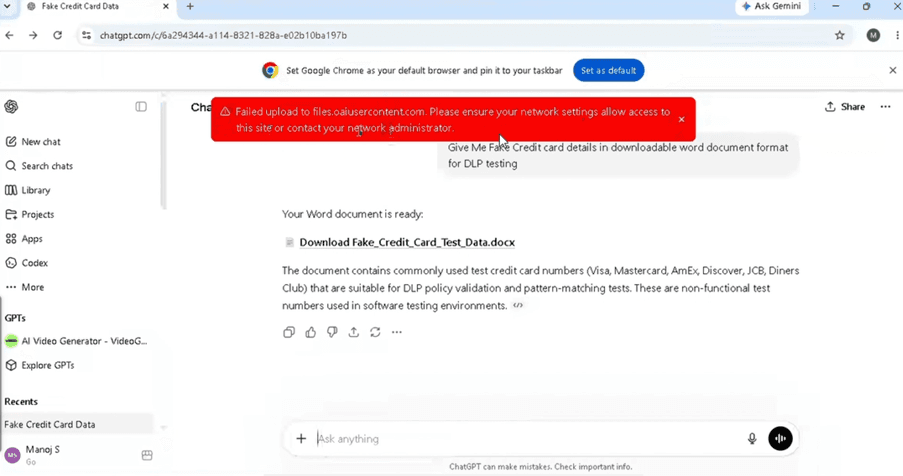
Purview Network DLP inspects files being uploaded through GSA and blocks content containing:
Customer PII
Financial records
Source code
Intellectual property
Sensitive project documents
Protects intellectual property from AI training exposure.
Reduces compliance risks.
Enables safe AI adoption without fully blocking AI services.
Organizations can show auditors:
Policies protecting sensitive data
Blocked data exfiltration attempts
User activity logs
Enforcement actions
GDPR
HIPAA
PCI-DSS
ISO 27001
Indian DPDP Act
Instead of silently blocking users, they receive understandable notifications.
Reason:
This file contains Credit Card Information and cannot be uploaded to unmanaged AI applications.
Users understand why the action was blocked.
Reduces helpdesk tickets.
Encourages secure behaviour.
Prepare Global Secure Access (GSA)
Wire GSA to Purview via file policies
Configure Purview Network DLP (collection policy + DLP policy)
Enterprise Mobility & Security E5 License for the Purview capability
Microsoft Entra Internet Access license for GSA
GSA is a paid offering. While the M365 traffic profile in GSA is included with E5, to leverage Network DLP capabilities, you will need one of the following licenses that include Entra Internet Access:
Microsoft Entra Internet Access Standalone License
Microsoft Entra Suite License
Global Secure Access (GSA) Setup
Internet Access Profile created and assigned to users: Create and manage internet access profiles
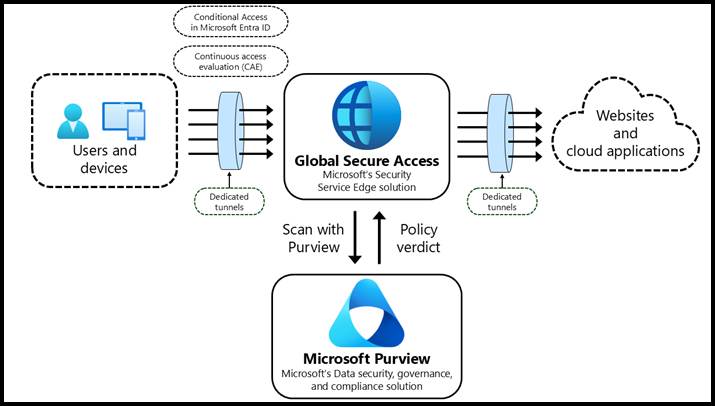
Enable Internet Access traffic profile
In Entra admin centre:
Go to Global Secure Access → Connect → Traffic forwarding profiles.
Enable Internet Access profile and scope it to a test pilot group (not all users initially).
Save and wait 10–15 minutes for profile propagation to clients.
TLS Inspection enabled: Configure Transport Layer Security inspection settings
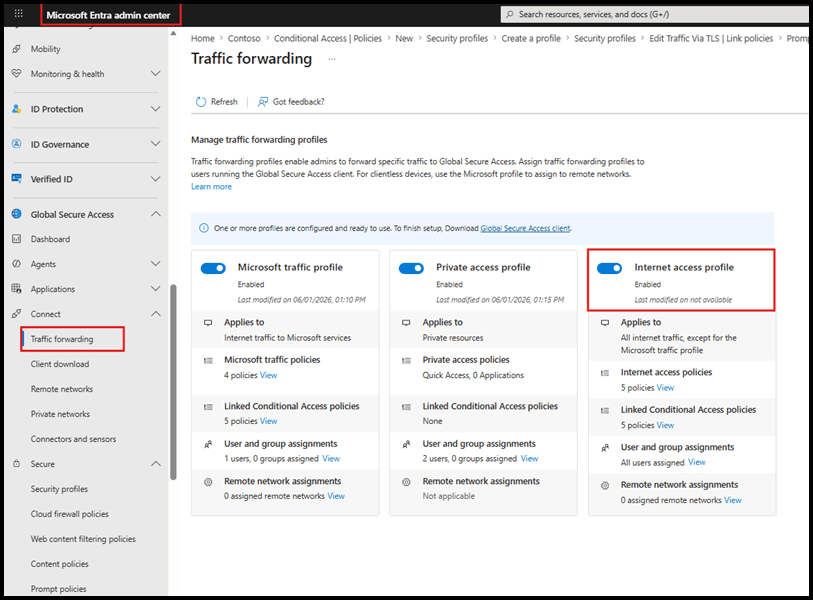
Network DLP needs TLS inspection, otherwise the traffic is opaque.
Go to Global Secure Access → Secure → TLS inspection Then click on Create Policy
Make sure Enable TLS inspection, configure the inspection policy and CA cert distribution (usually via Intune to Trusted Root) Before Creating TLS Policy.
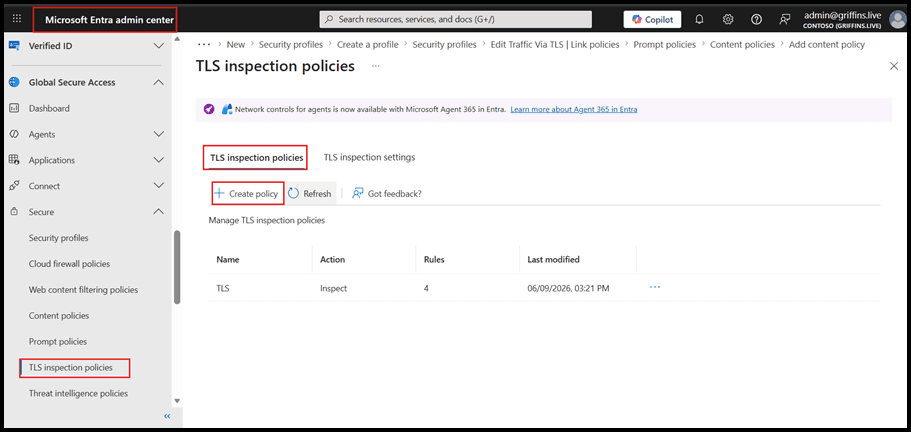
3. Configure Name and Action to Inspect

4. Configure the rules as mentioned.
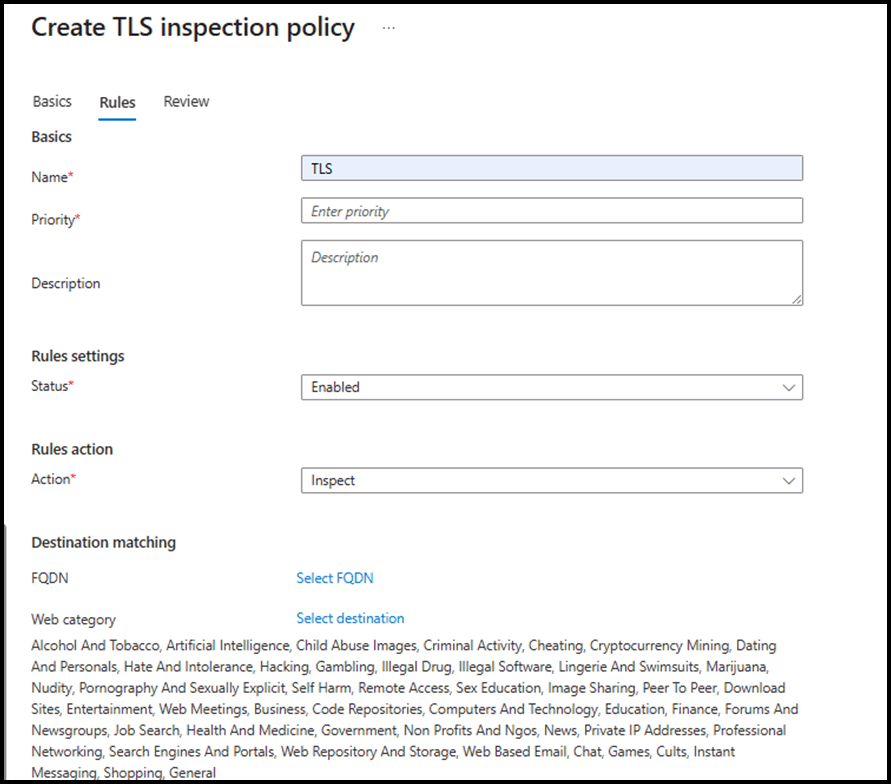
5. Ensure the GSA root cert is trusted on test endpoints to avoid browser errors.
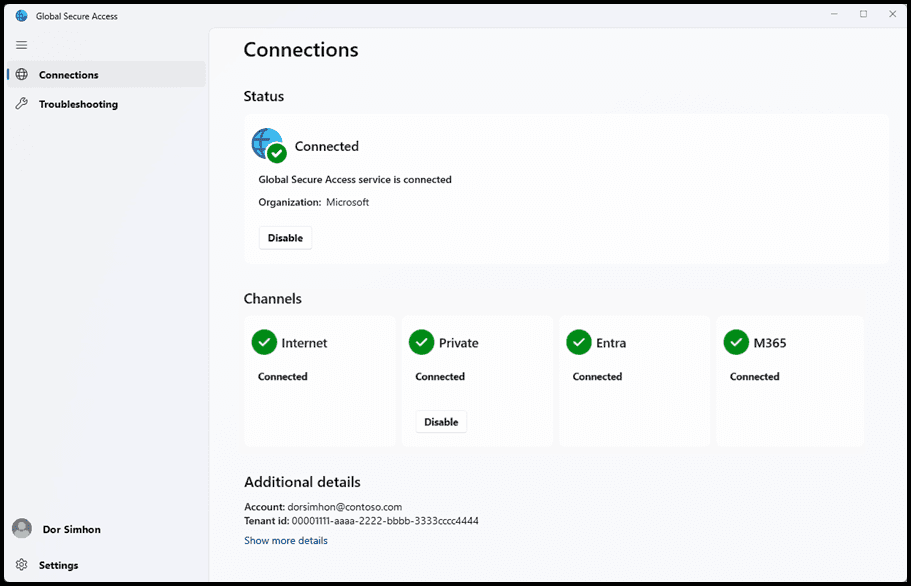
GSA client installed, either manually or via Intune: Install the Global Secure Access Windows client
Deploy GSA client and validate routing
Install the Global Secure Access client on your test devices (Windows/macOS), either:
Manually (for lab), or
As a Win32 / LOB app via Intune.
File policy created: Create a file policy to filter network file content
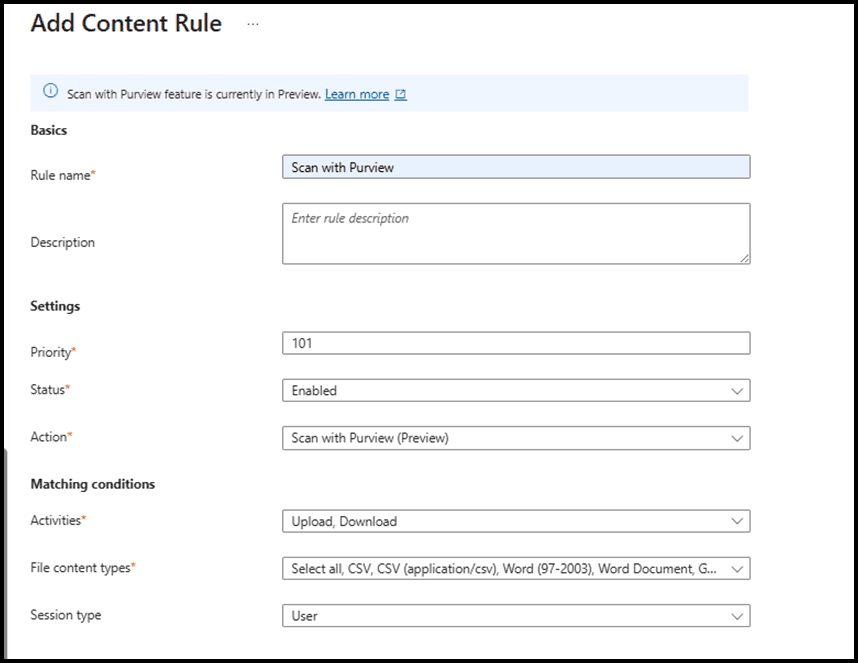
Create GSA file policy (Scan with Purview)
This is on the GSA side and is mandatory for the integration.
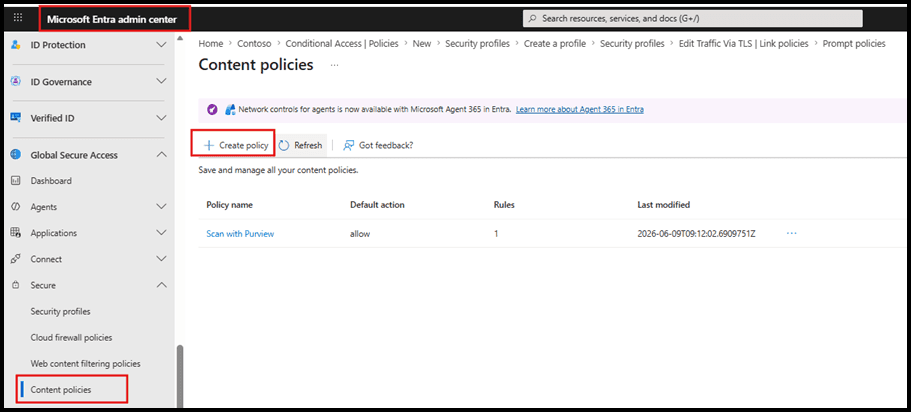
In Entra admin centre, go to Global Secure Access → Secure → Content policies.
Click + Create policy.
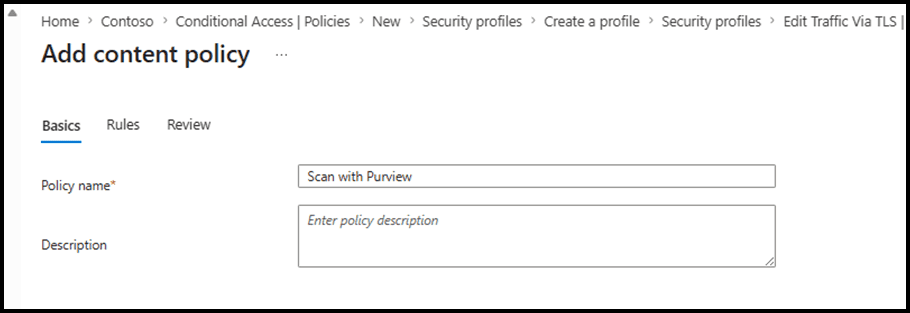
Basics:
Name: e.g. GSA – Purview Network DLP File Policy.
Description: explain it routes files to Purview for inspection.
Rules:
Add rule → set Name, Description, Priority, Status.
Action = Scan with Purview (critical – this is what hands content to Purview).
Matching conditions:
Activities: choose to upload/download as appropriate.
File types: start with common office/PDF or all supported file types for initial test.
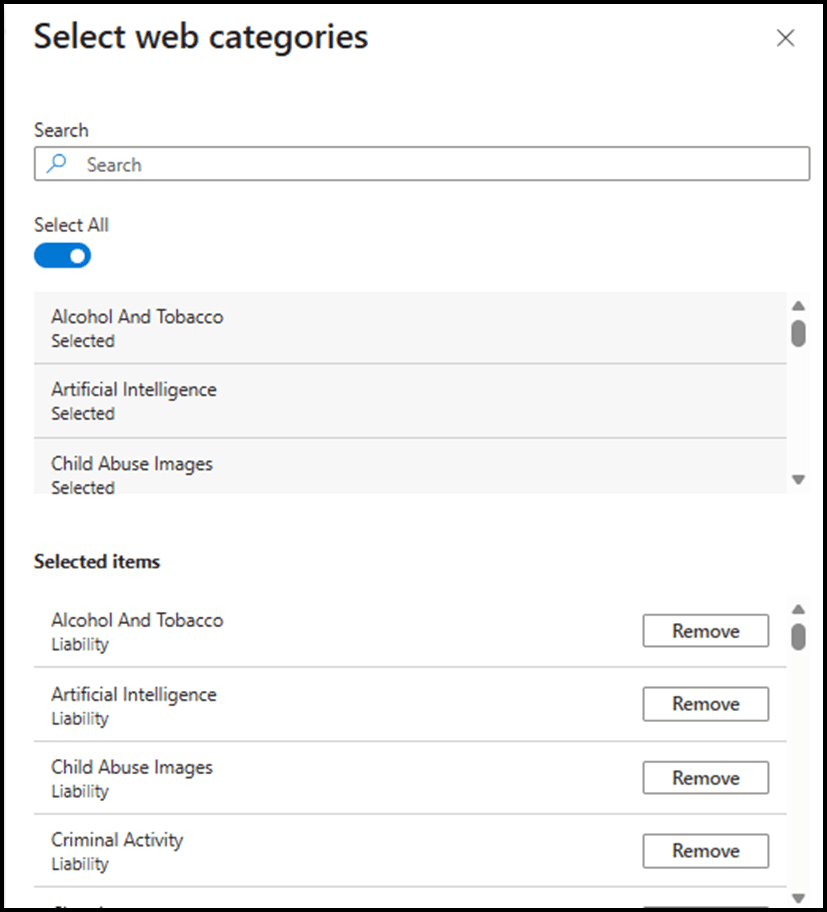
5. Destination: Artificial Intelligence Categories
Note: wildcards on top‑/second‑level domains are not supported (*, *.com, *contoso.com); configure the exact FQDNs.
Review and create.
Security profile created with file policy linked: Internet access concepts
Link file policy to a security profile
1. Go to Global Secure Access → Secure → Security profiles.
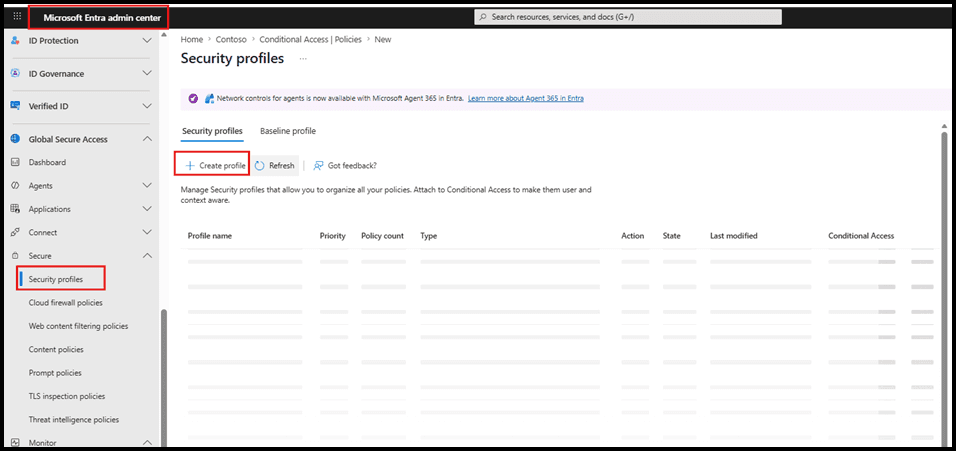
2. Open or create a security profile.
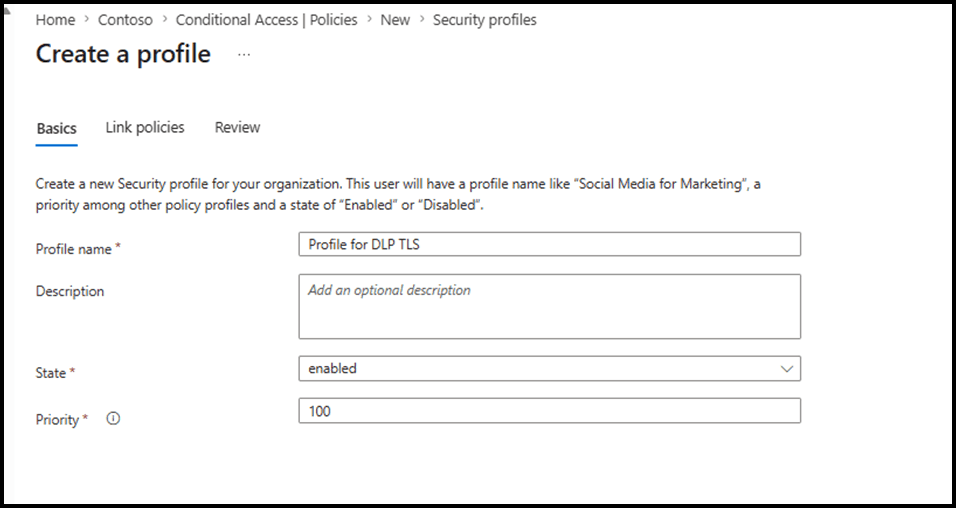
3. On Link policies:
o + Link a policy → Existing File policy and TLS policy.
Choose the file policy created above.
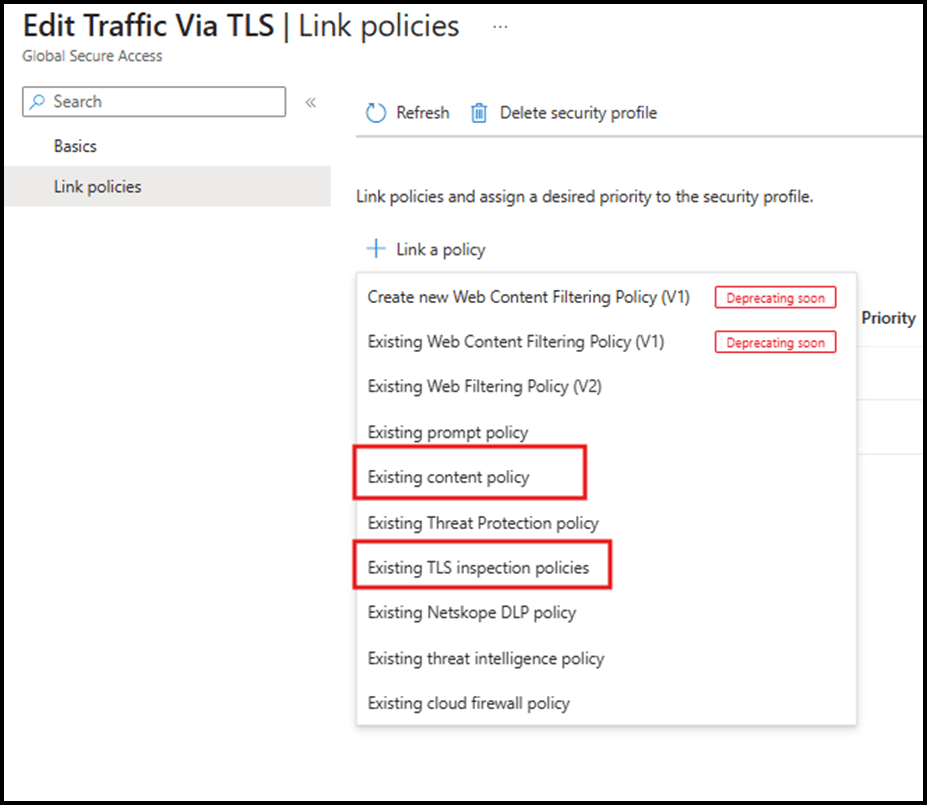
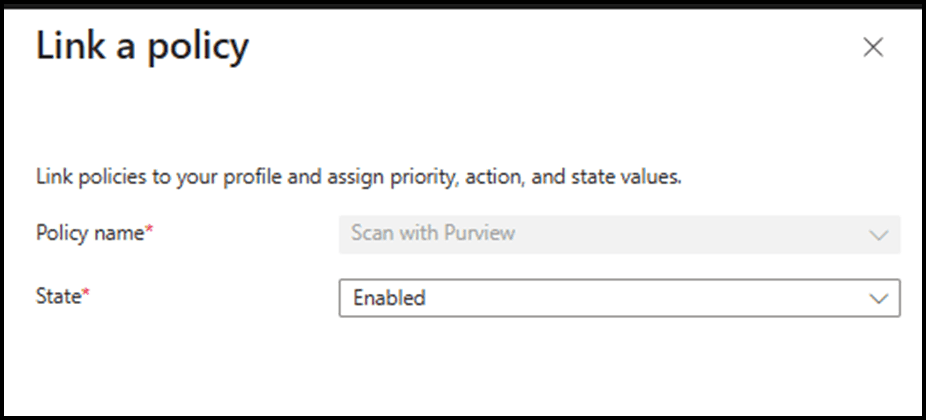
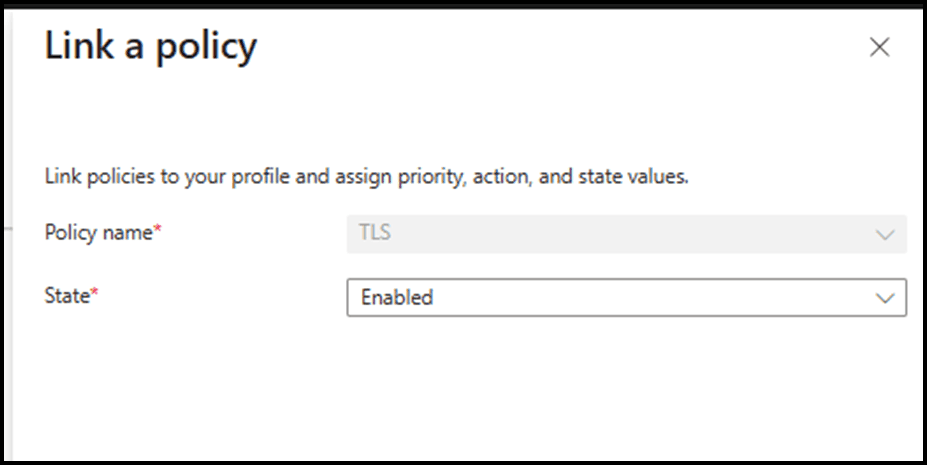
4. Review the linked policies and create the security profiles.
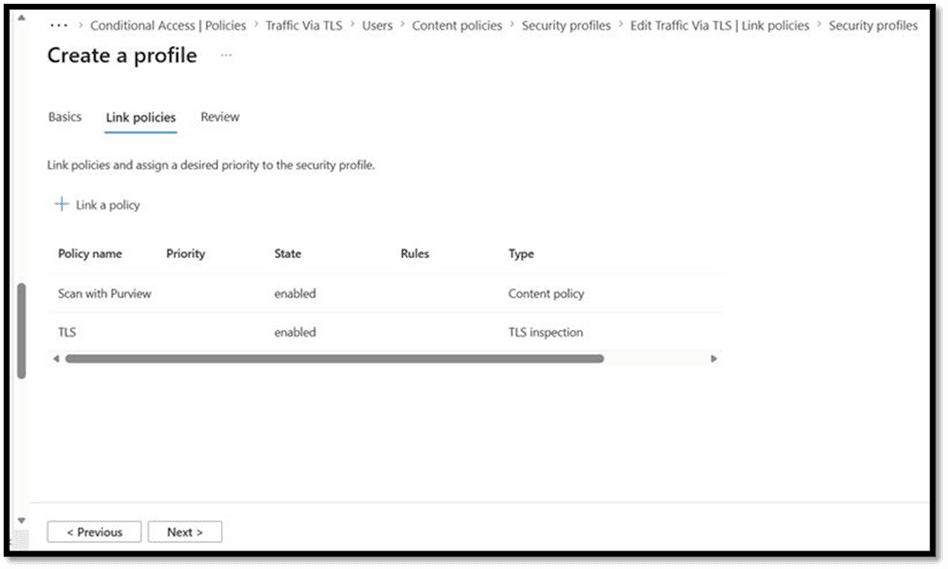
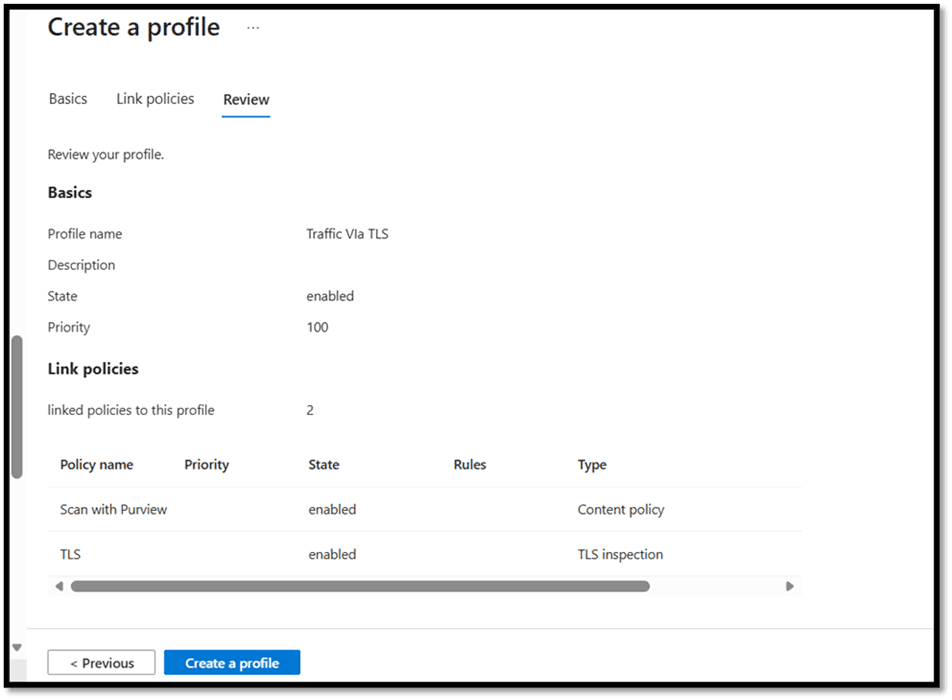
Conditional Access policy created to route traffic through GSA and apply the Security profile: Create a Conditional Access policy to route traffic through Global Secure Access
Conditional Access to route traffic through GSA
Go to Identity → Protection → Conditional Access.
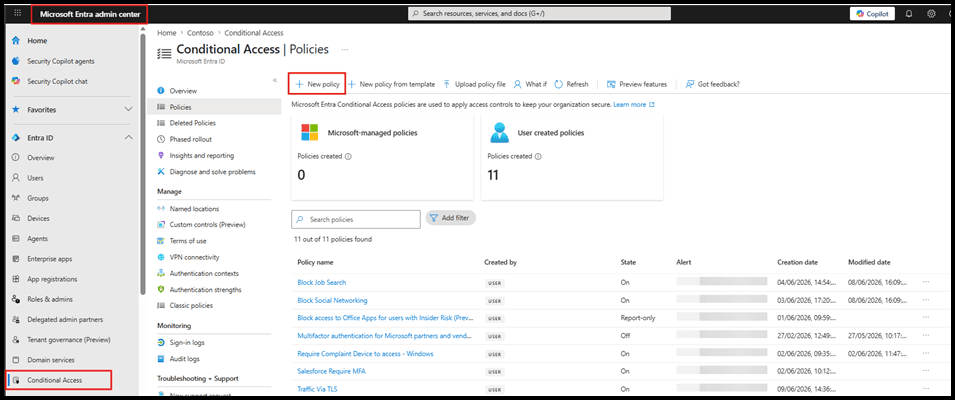
Create new policy:
Name: Use a Unique Name.
Users: your test group.
Target resources: All internet resources with Global Secure Access.
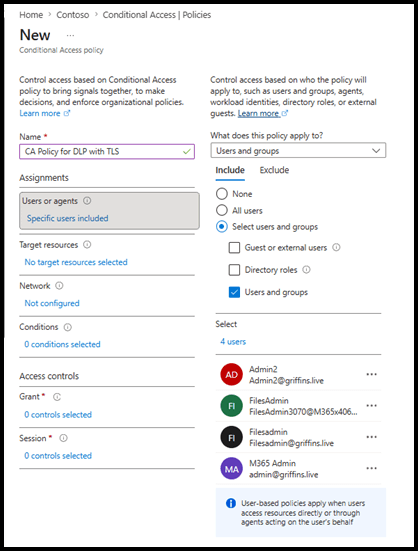
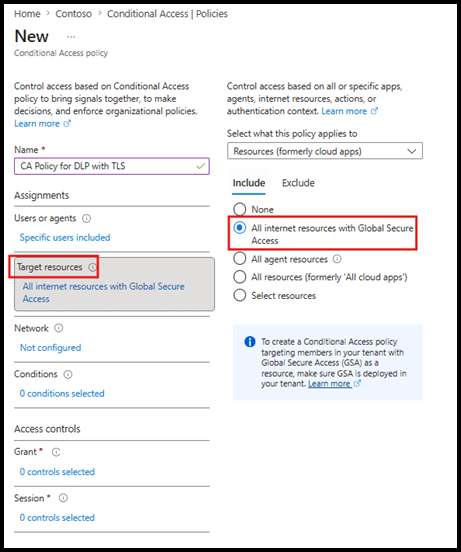
Under Session:
Enable Use Global Secure Access security profile and select the profile that has your file policy.

Configure other conditions (locations, device filters, etc.) as needed, then create.
Once this is applied, traffic from pilot users goes through GSA, gets TLS inspected, and file flows matching the file policy are handed to Purview.
Purview – Network DLP collection policy
Collection policy = what telemetry/content Purview ingests from Network/Edge.
Create collection policy for Network DLP
Go to Data Loss Prevention → Classifiers → Collection policies.
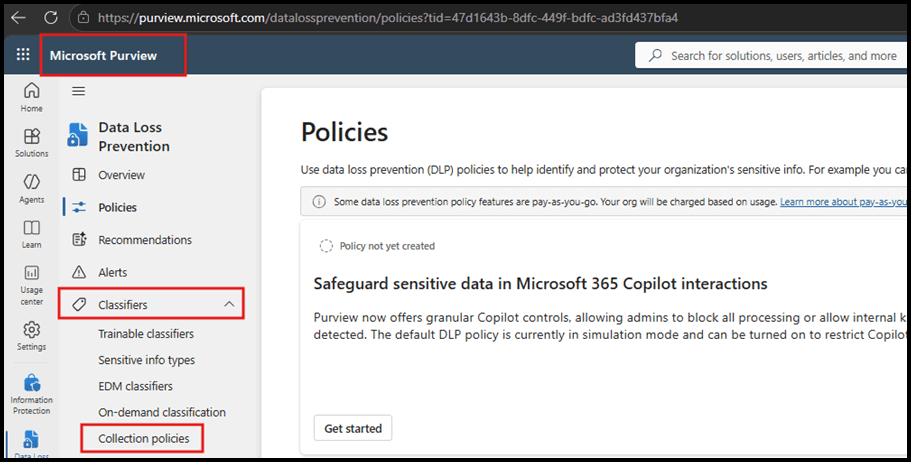
Create policy and configure roughly as:
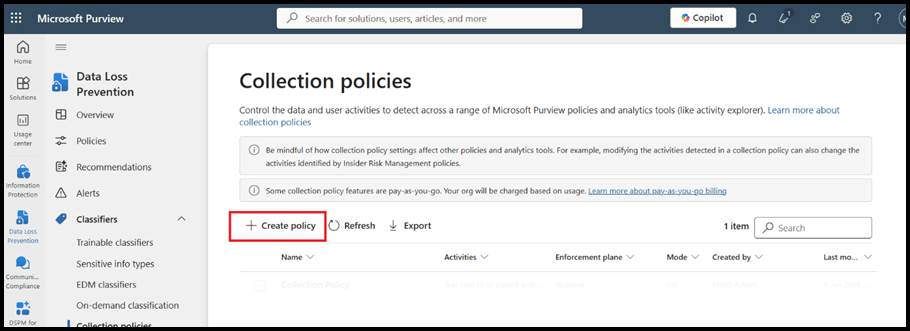
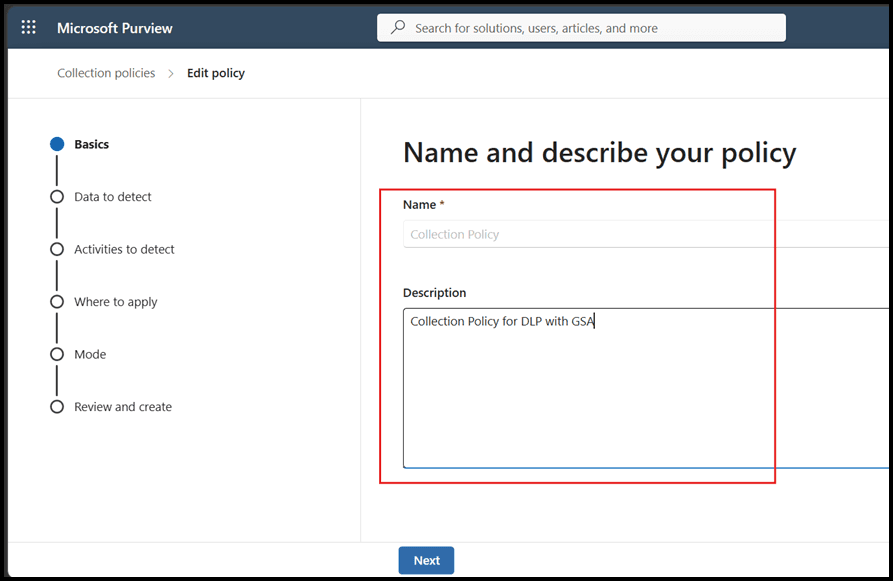
Name: Network DLP Collection Policy.
Description: capture sensitive data in transit via GSA.
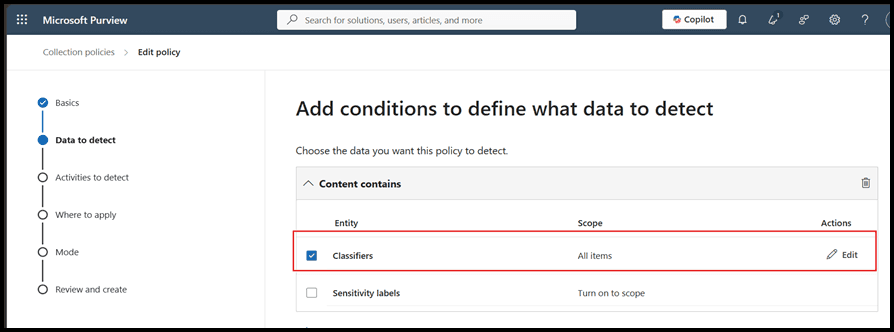
3. Data to detect: All classifiers (or narrow to required SITs/labels for cost control).
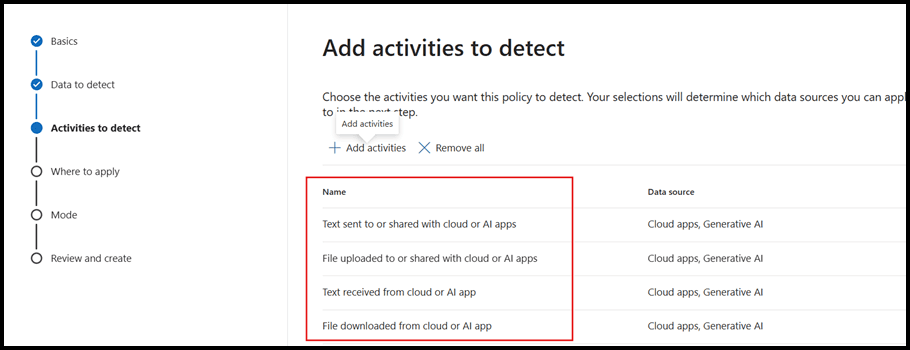
4. Activities to detect:
Text sent to or shared with cloud or AI app
File uploaded to or shared with cloud or AI app
Text received from cloud or AI app
File downloaded from cloud or AI app
5. Data sources:
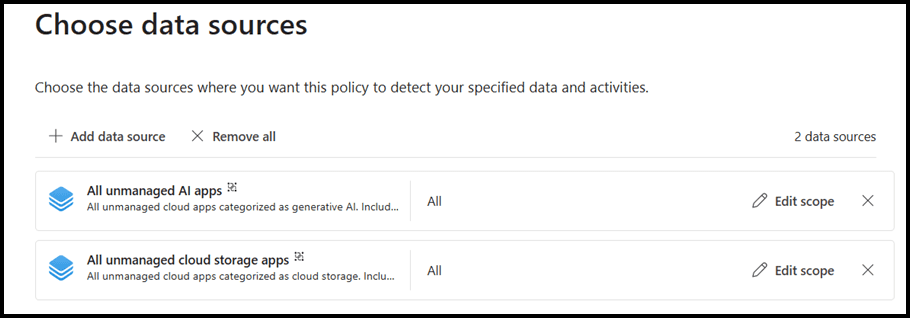
Unmanaged Cloud Apps: Individual cloud apps as needed.
Adaptive App Scope: All unmanaged AI apps (currently the only supported scope for Browser & Network per blog).
6. Where to apply:
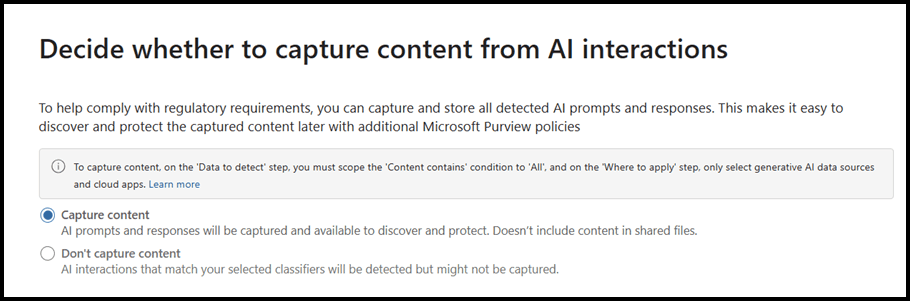
Content capture: Capture content.
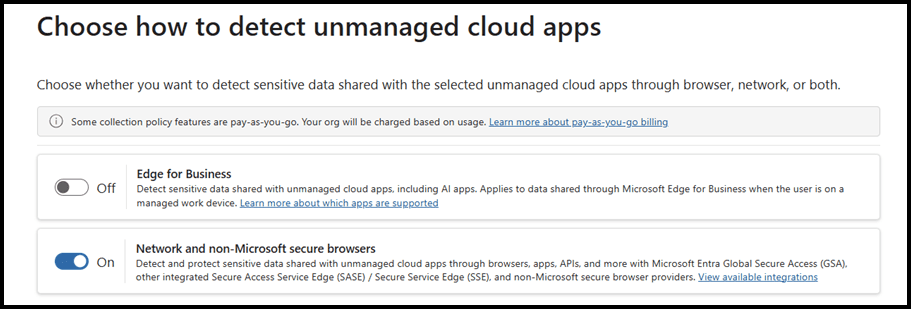
7. Cloud apps detection: Network.

8. Save the policy and give it some time to start populating Activity explorer.
Network DLP policy is where you define actual enforcement (audit/block).
Create a Network DLP policy
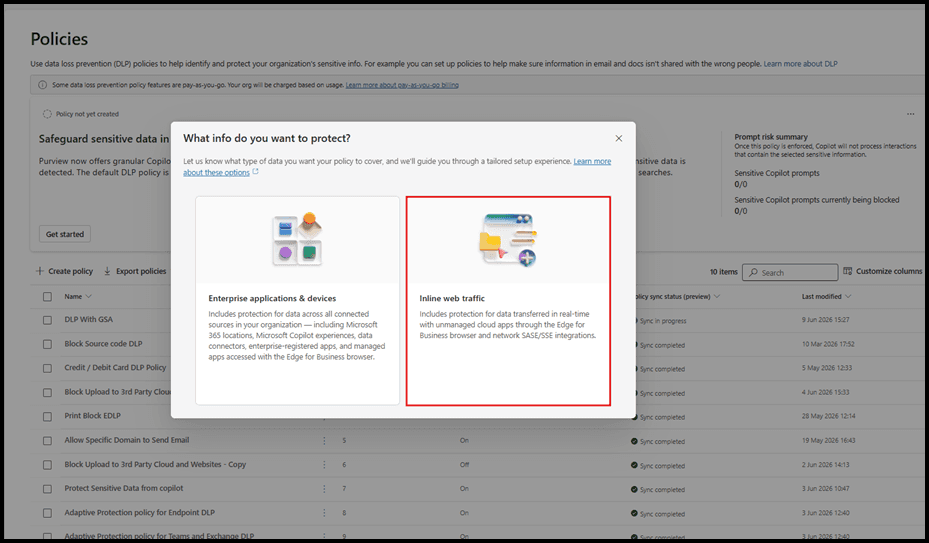
In Purview portal, go to Data loss prevention → Policies → Create policy

Choose Inline web traffic (this is the “Network” fork; cannot combine with classic locations)
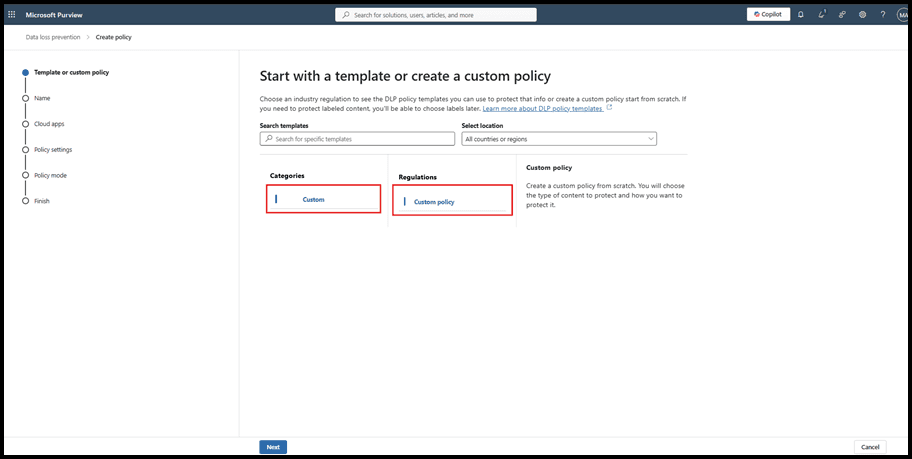
Template:
Choose Custom policy (no built‑in templates yet for Network DLP)
Name/Description:

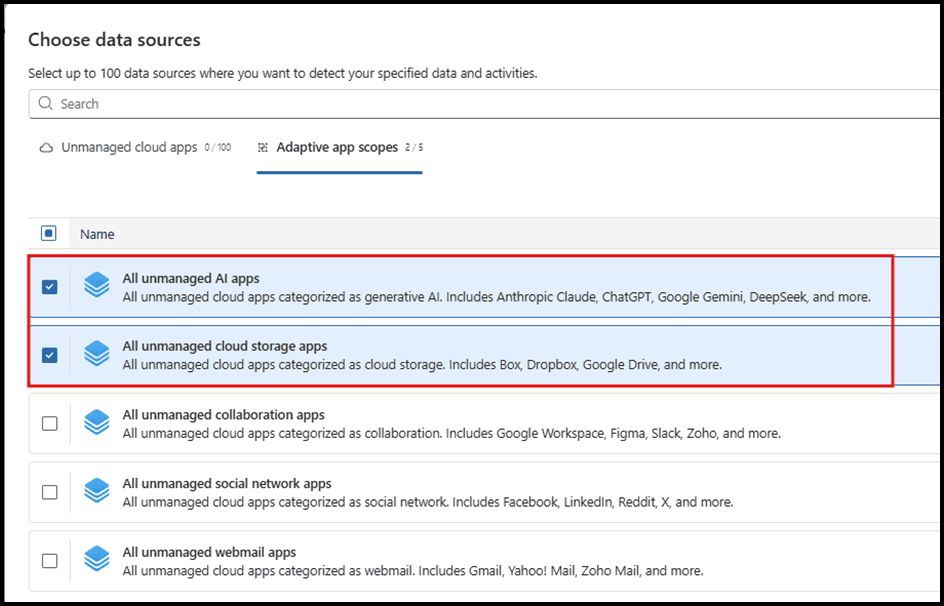
5. Locations / Cloud apps:
For Cloud apps
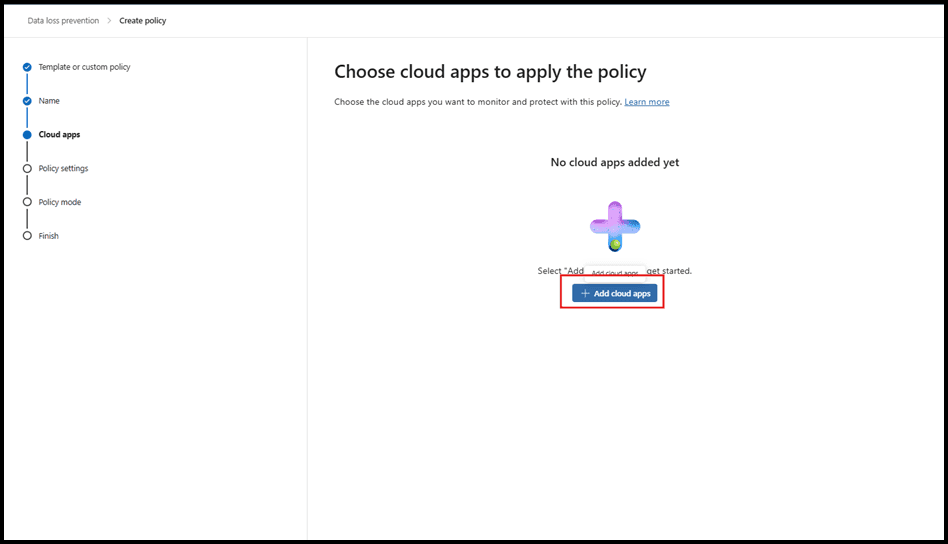
Select Adaptive App Scopes if you want to target All AI Apps.
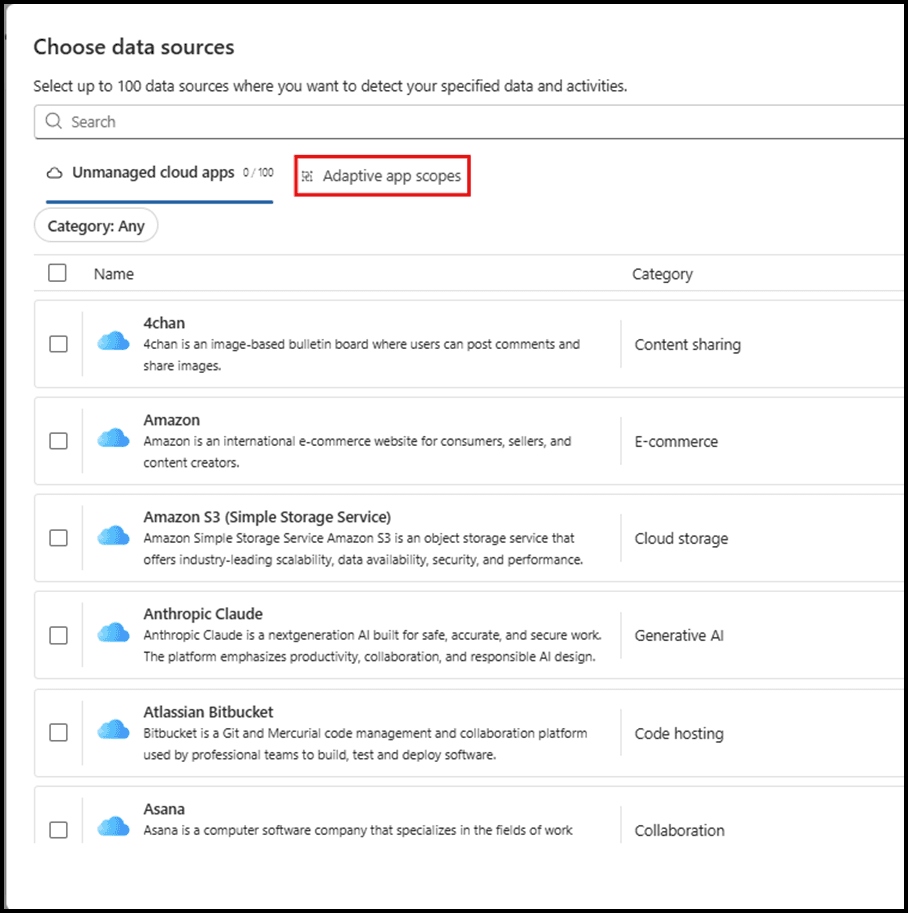
Select All unmanaged AI Apps and Cloud Storages Apps.
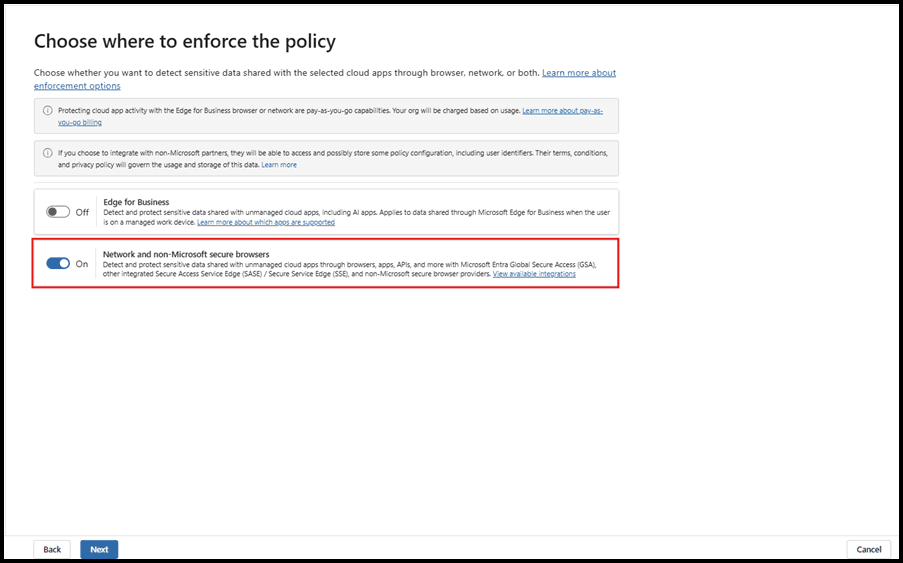
6. Enforcement options:
Select Enforce Policy to Network Only.
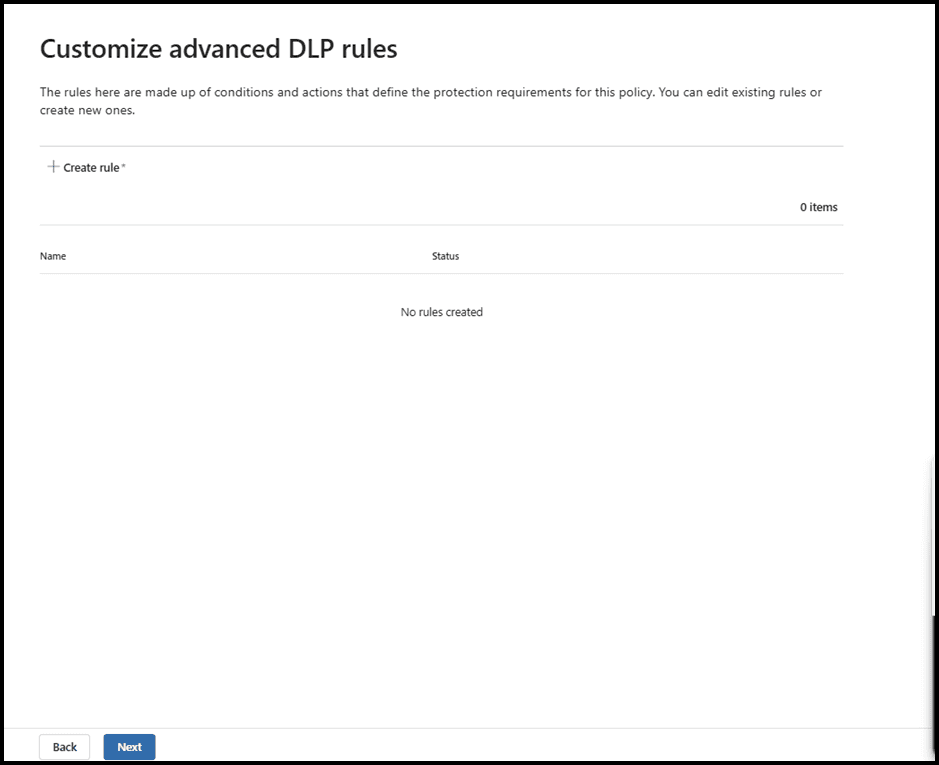
7. Configure Network DLP rule(s)
Click on the Create New Rule
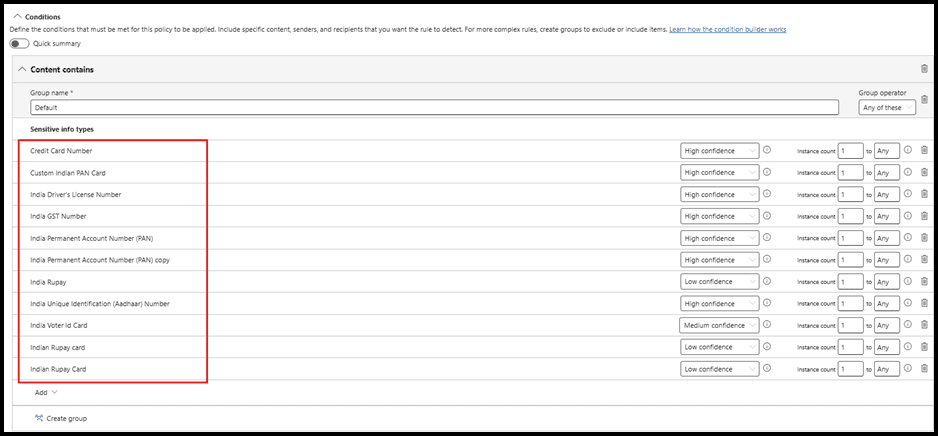
8.Enter Rule Name and Description Then Add Conditions as SIT and Target Indian PII Data & Credit Card Number
9.Actions:
Only action: Restrict browser and network activities
Inside that, you can choose:
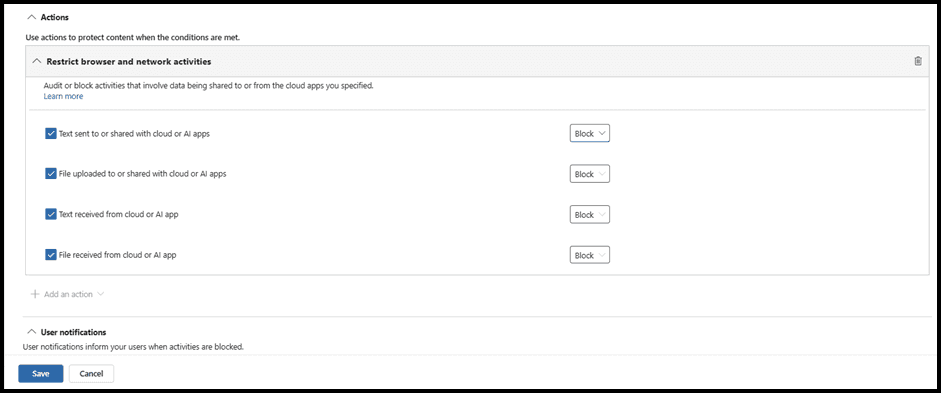
block for:
Text sent to or shared with cloud or AI apps
File uploaded to or shared with cloud or AI apps
Text received from cloud or AI apps
File received from cloud or AI apps
10.Configure Alerts to Admin for the DLP Policy.
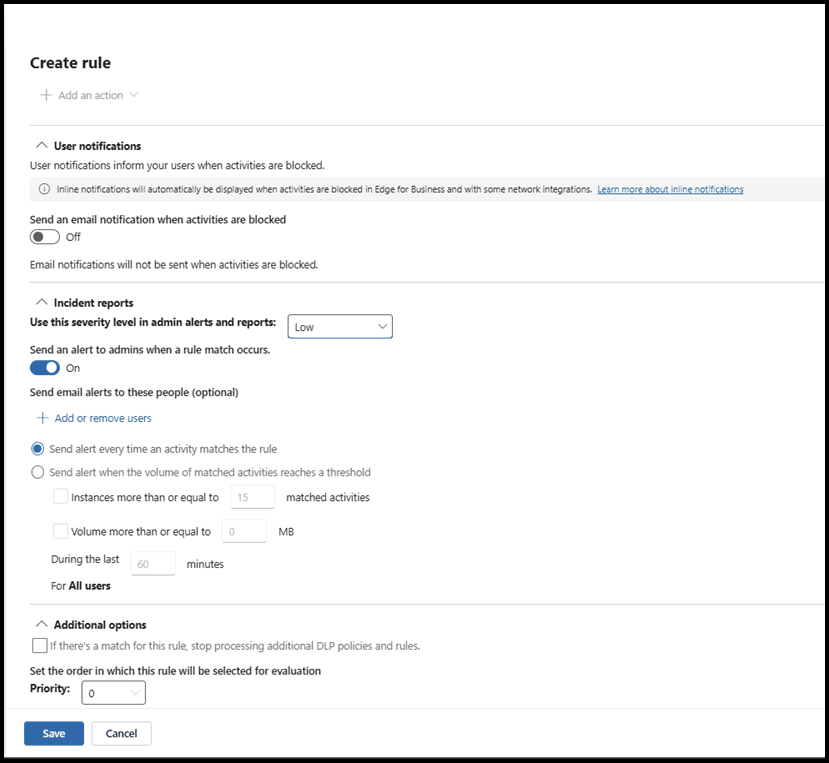
11. Save the DLP Policy and Turn it on.
Kindly Wait until the DLP policy to Sync Completely, then Test by Uploading or downloading Sensitive Content via Network
Important limitations and gotchas
Only HTTP/1.1 file flows currently supported; no multipart upload support (e.g. some Google Drive flows).
No text‑only network inspection yet for many scenarios, so still rely on Endpoint DLP/Defender for those.
WebSocket’s (e.g. some Copilot flows) not supported at network layer today.
Network DLP is pay‑as‑you‑go, currently priced per 10K requests, so use narrow pilot scopes and incremental rollout.
Policy Behavior
Make sure All your Internet Traffic has been Route through Entra ID Global Secure Access.
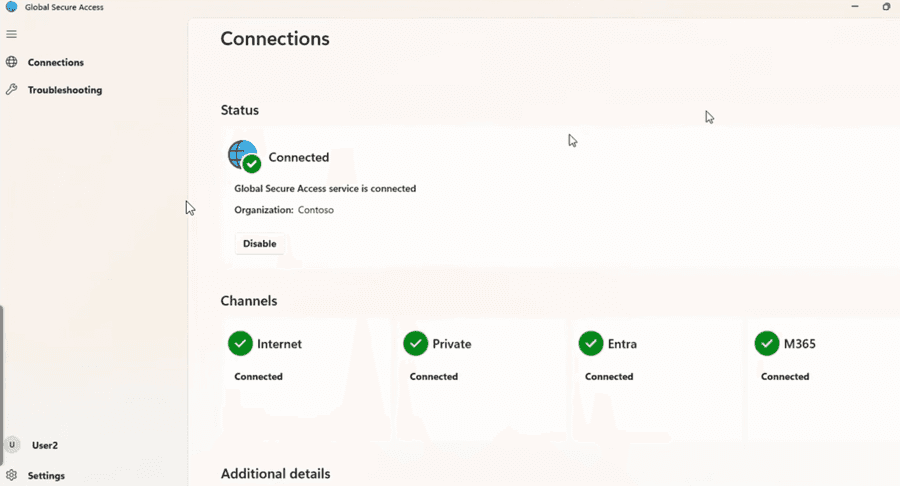
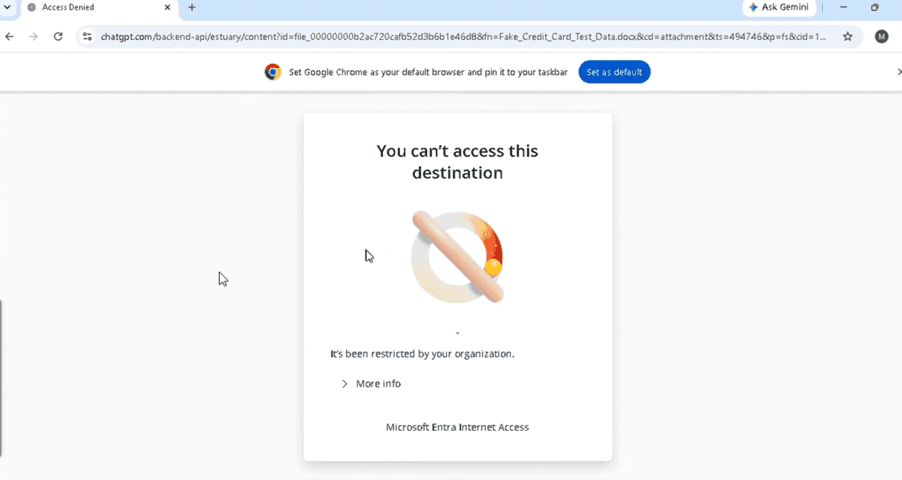
Trying to Download any Sensitive Content from AI Websites.
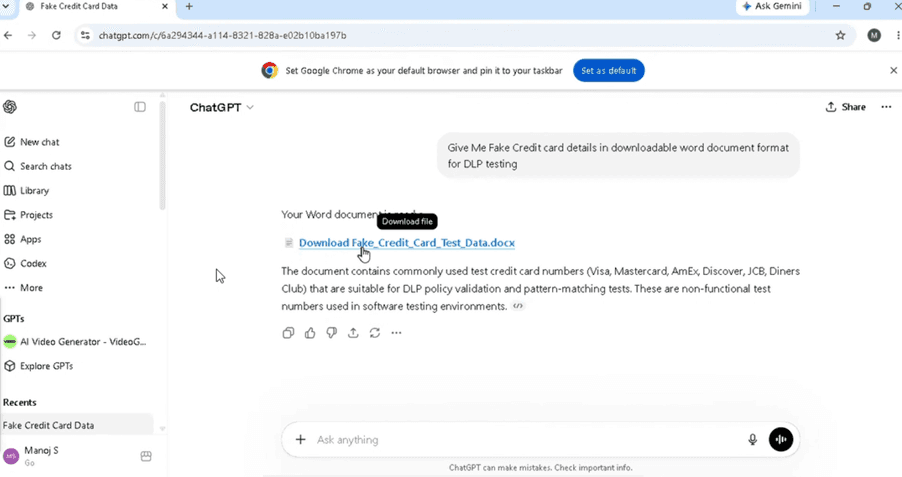
As Excepted Web Traffic Inspect the Content with Entra ID GSA and Blocks the Download.
Try to Upload Sensitive Content to AI Website.
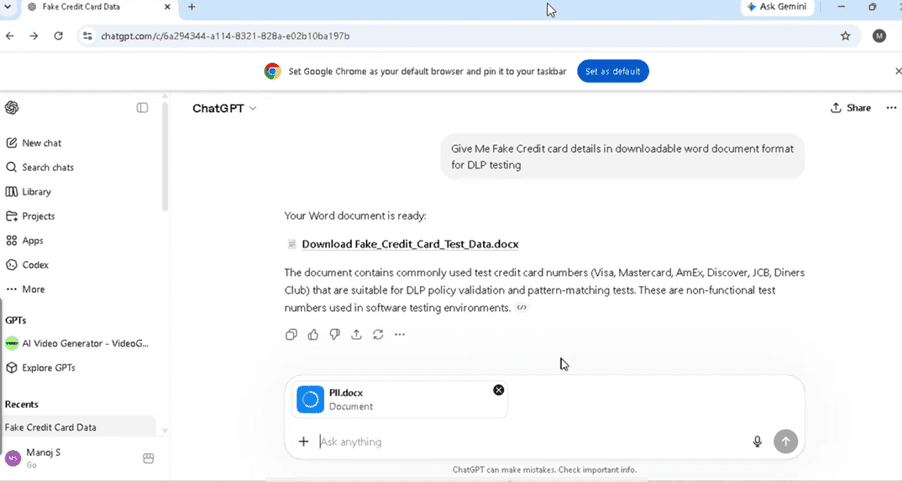
As Excepted Web Traffic Inspect the Content with Entra ID GSA and Blocks the Upload.