That File Shared for One Project Is Still Open Three Years Later
That File Shared for One Project Is Still Open Three Years Later
That File Shared for One Project Is Still Open Three Years Later
That File Shared for One Project Is Still Open Three Years Later
That File Shared for One Project Is Still Open Three Years Later
Blog Summary
As organizations adopt AI-powered experiences such as Microsoft 365 Copilot, protecting sensitive information has become a critical priority. AI can quickly discover, summarize, and
Blog Details
As organizations adopt AI-powered experiences such as Microsoft 365 Copilot, protecting sensitive information has become a critical priority. AI can quickly discover, summarize, and generate responses from content stored across Microsoft 365. While this significantly improves productivity, it also increases the risk of exposing sensitive information that is overshared, over-permissioned, or lacks appropriate governance controls.
To address these challenges, Microsoft provides Data Security Posture Management (DSPM) as part of Microsoft Purview. DSPM helps organizations continuously discover sensitive data, assess security risks, identify data exposure, and recommend remediation actions before sensitive information can be unintentionally accessed by users or AI applications.
One of the key capabilities of Microsoft Purview DSPM is Data Risk Assessments, which proactively identify potential data oversharing risks across Microsoft 365 and provide guided remediation recommendations to strengthen an organization’s data security posture.
What is Microsoft Purview Data Security Posture Management (DSPM)?
Microsoft Purview Data Security Posture Management (DSPM) is a proactive data security solution that helps organizations discover sensitive data, evaluate data risks, monitor security posture, and improve governance across their Microsoft 365 environment.
Rather than reacting to security incidents after they occur, DSPM continuously analyzes data exposure and provides actionable insights that help administrators answer questions such as:
Where is sensitive information stored?
Which files or sites are overshared?
Which sensitive files are missing protection?
What remediation actions should be taken before deploying Microsoft 365 Copilot?
By continuously monitoring these risks, DSPM enables organizations to securely adopt AI while maintaining compliance and protecting sensitive business information.
What are Data Risk Assessments?
Data Risk Assessments are a feature of Microsoft Purview DSPM that help organizations identify and remediate potential data oversharing risks.
Data Risk Assessments analyze Microsoft 365 data and sharing configurations to identify content that may expose sensitive information due to:
· Excessive sharing permissions
Anonymous or external sharing links
Missing Sensitivity Labels
Lack of governance controls
Inactive or obsolete content that remains accessible
Instead of only identifying these risks, Data Risk Assessments also provide recommended remediation actions that help administrators reduce data exposure before Microsoft 365 Copilot or users can access sensitive information.
Data Risk Assessments can be accessed from:
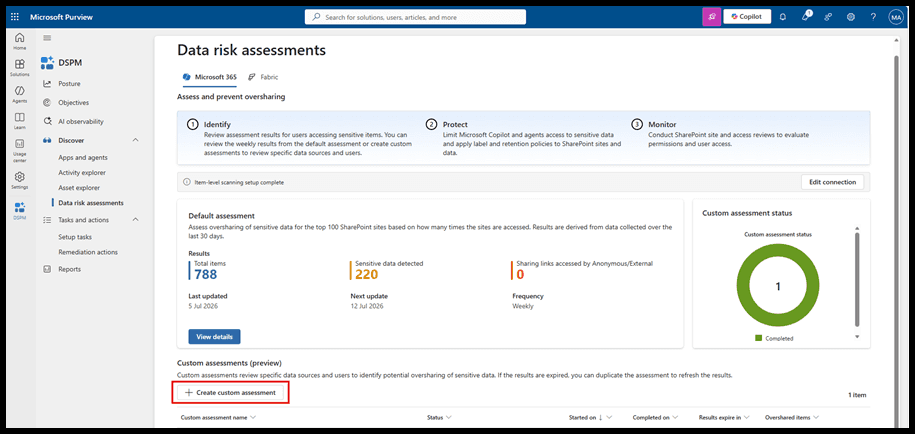
Microsoft Purview Portal → DSPM → Discover → Data Risk Assessments
Types of Data Risk Assessments
Microsoft Purview provides two types of Data Risk Assessments.
Assessment
Description
Default Data Risk Assessment
Automatically runs every week to continuously monitor oversharing risks.
Custom Data Risk Assessment
Allows administrators to manually select users, SharePoint sites, and scan settings for targeted assessments.
Default Data Risk Assessment
The Default Data Risk Assessment runs automatically every week without requiring any administrator intervention.
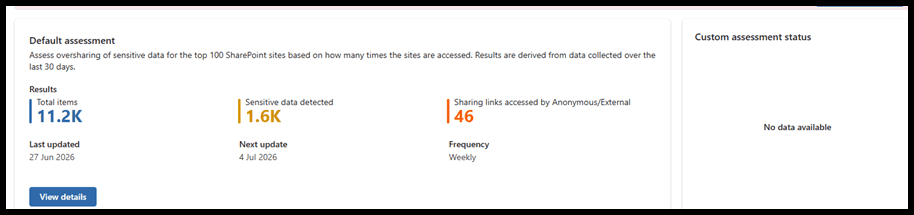
For Microsoft 365, Microsoft automatically evaluates the top 100 SharePoint sites based on organizational usage to identify potential data oversharing risks. The assessment provides oversharing insights for Microsoft 365, including SharePoint and OneDrive content.
Note: The first default assessment takes approximately 4 days before results become available.
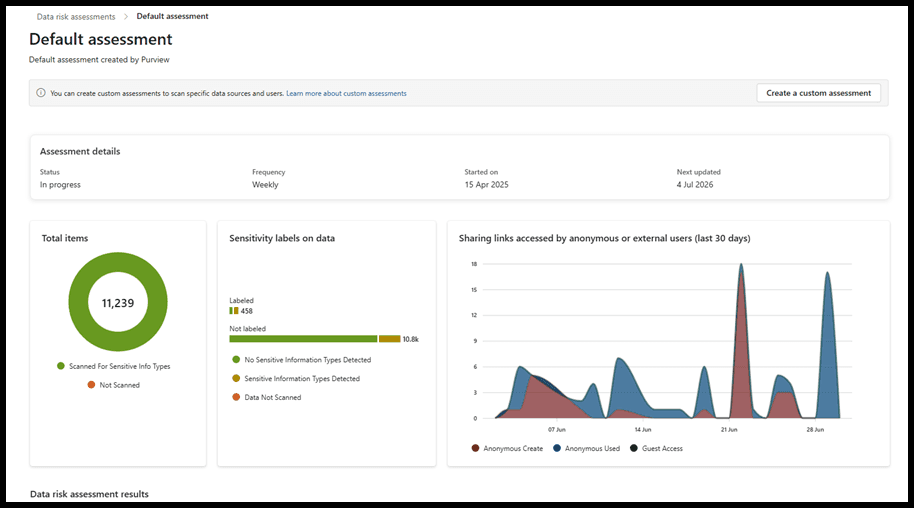
This image shows the Default Data Risk Assessment in Microsoft Purview Data Security Posture Management. The assessment helps administrators identify potential oversharing risks across Microsoft 365 content, especially SharePoint and OneDrive, by highlighting scanned items, sensitive content, files shared through broad access links, and recommended remediation actions.
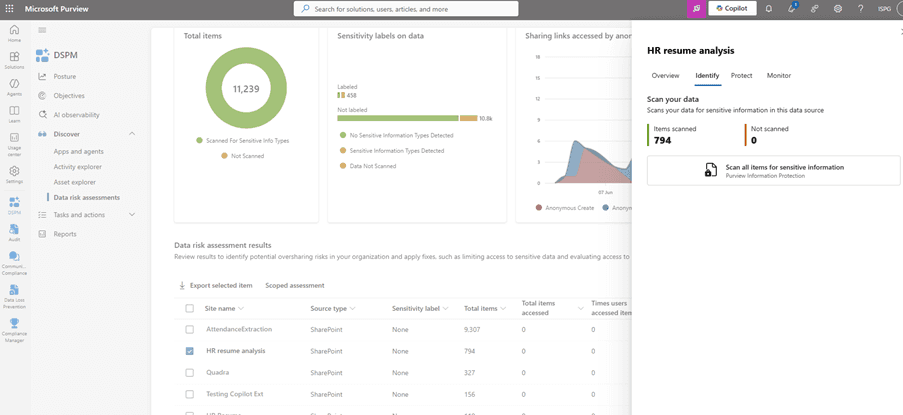
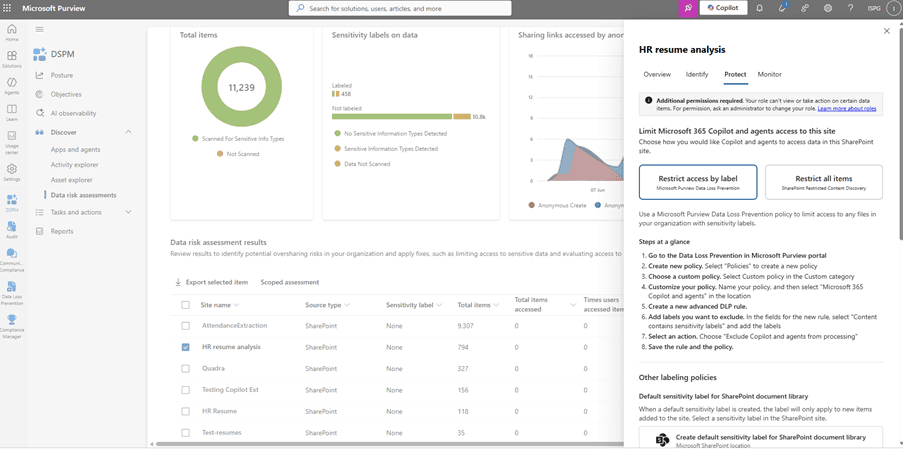
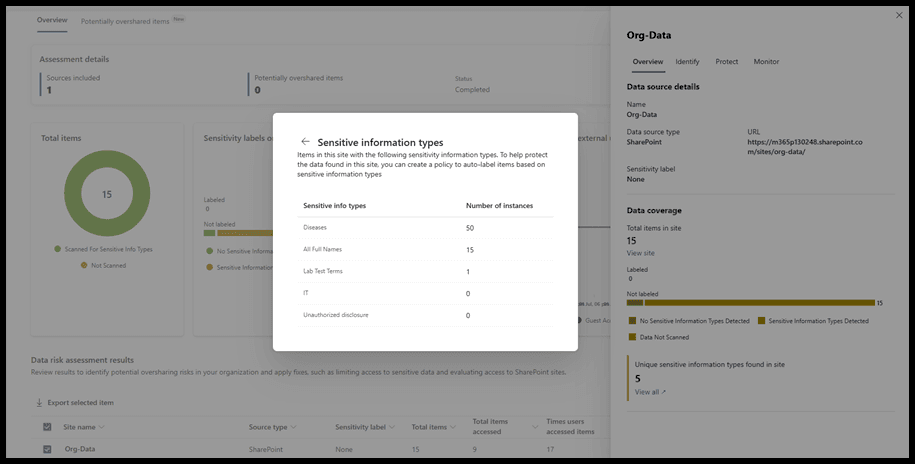
The View Details page provides a deeper assessment of each selected site through sections such as Overview, Identify, Protect, and Monitor. These sections help administrators review where sensitive data exists, understand how content is shared, and decide which remediation action should be applied to reduce data exposure before Microsoft 365 Copilot or users can access overshared content.
After the assessment completes, administrators receive a high-level summary showing:
Total number of scanned items
Sensitive content detected
Files shared using anonymous (“Anyone”) links
Recommended remediation actions
Selecting View Details provides deeper insights into each SharePoint site through four sections:
Overview
Identify - Displays how much content has been scanned or remains unscanned for Sensitive Information Types (SITs). Administrators can also initiate an on-demand classification scan if required.
Protect - Provides recommended remediation actions such as Restrict Access by Label, Restrict All Items, Auto-labeling Policies, and Retention Policies.
Monitor - Displays sharing insights, including items shared with Anyone, Everyone in the organization, Specific People, and External Users.
Each section provides specific information and recommended actions to improve data security.
One of the biggest advantages of Data Risk Assessments is that Microsoft doesn’t simply identify risks—it also recommends actions to remediate them.
1. Restrict Access by Sensitivity Label
If sensitive documents already have Sensitivity Labels applied, administrators can create a Microsoft Purview DLP policy that prevents Microsoft 365 Copilot from summarizing those files.
Example
A document is labeled Confidential.
A DLP policy is configured to prevent Microsoft 365 Copilot and agents from accessing or summarizing all files with the Confidential label.
Result
Microsoft 365 Copilot cannot use the document when generating responses.
2. Restrict All Items
If an entire SharePoint site contains highly sensitive information, administrators can exclude the entire site from Microsoft 365 Copilot using Restricted Content Discovery.
Example
A SharePoint site stores:
Legal documents
HR records
Executive reports
Instead of protecting each document individually, the administrator blocks the entire SharePoint site from Copilot discovery.
Result
Microsoft 365 Copilot cannot discover or use any content from that site.
3. Create Auto-Labeling Policies
The assessment can identify files containing sensitive information that do not have Sensitivity Labels.
Administrators can create an Auto-labeling Policy so that Microsoft Purview automatically applies the appropriate Sensitivity Label.
Example
A document contains:
PAN Number
Salary Information
No Sensitivity Label has been applied.
The assessment recommends creating an auto-labeling policy.
Result
Future documents containing similar sensitive information are automatically labeled, strengthening protection.
4. Create Retention Policies
Older content often becomes an oversharing risk because it remains accessible even though it is no longer required.
When Data Risk Assessments identify files that haven’t been accessed for at least three years, Microsoft recommends creating a retention policy to automatically delete or manage the inactive content.
Example
A project document has not been opened for more than three years.
The assessment recommends applying a retention policy.
Result
Inactive content is automatically managed, reducing unnecessary exposure.
Custom Data Risk Assessment
While the Default Assessment automatically scans commonly used SharePoint sites, administrators may need to evaluate specific users, departments, or SharePoint sites.
For these scenarios, Microsoft Purview provides Custom Data Risk Assessments.
Administrators can choose:
Specific users
Selected SharePoint sites
Scan level
Data sources
Unlike the default assessment, a custom assessment runs only when initiated by an administrator.
After completion, results remain available, but they do not automatically refresh. To view updated results after changes, a new assessment must be created (or duplicated and rerun).
Note: A Custom Data Risk Assessment typically takes up to 48 hours to complete.
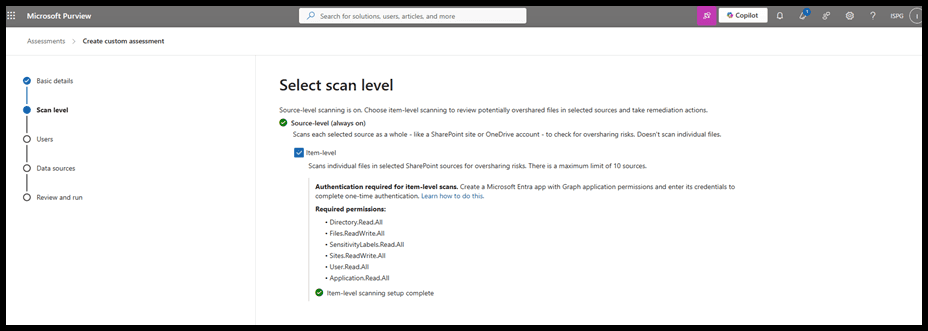
Item-Level Scanning
Microsoft 365 Custom Assessments support Item-Level Scanning, A file is considered potentially overshared when it contains anonymous or external sharing links.
Currently, Item-Level Scanning supports:
SharePoint Online only
It is not currently supported for OneDrive.
Prerequisites for Item-Level Scanning
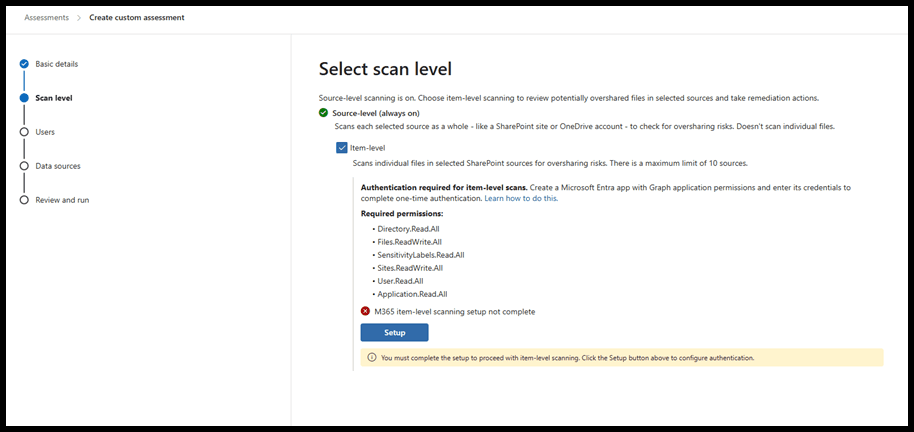
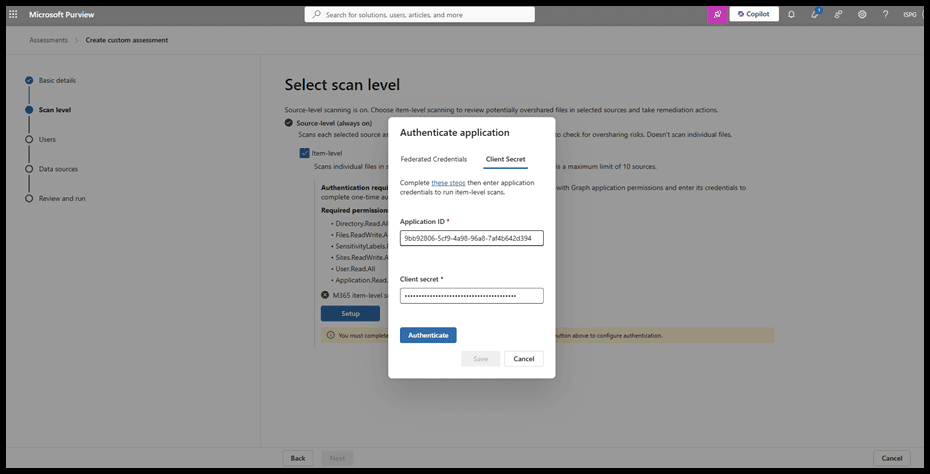
To enable Item-Level Scanning in a Custom Data Risk Assessment, Microsoft requires a one-time authentication process using a registered Microsoft Entra application.
The administrator performing this configuration must have one of the following Microsoft Entra roles:
Cloud Application Administrator
Application Administrator
Privileged Role Administrator
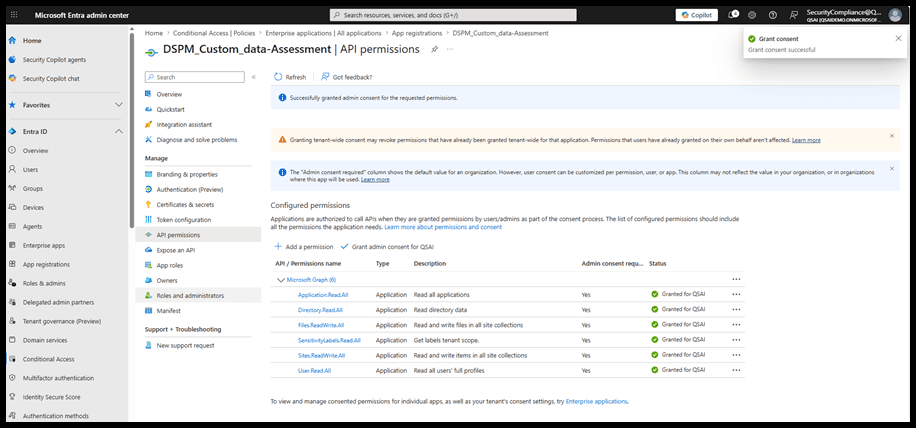
The registered application should be configured with:
Supported account type
Accounts in this organizational directory only
Microsoft Graph Application Permissions
Application.Read.All
Directory.Read.All
Files.ReadWrite.All
SensitivityLabels.Read.All
Sites.ReadWrite.All
User.Read.All
After assigning the permissions:
Grant Admin Consent.
Create a Client Secret (store it securely, as it is displayed only once).
Record the Application (Client) ID, which will be required during authentication in the Data Risk Assessment wizard.
To Create Custom Data Risk Assessment:
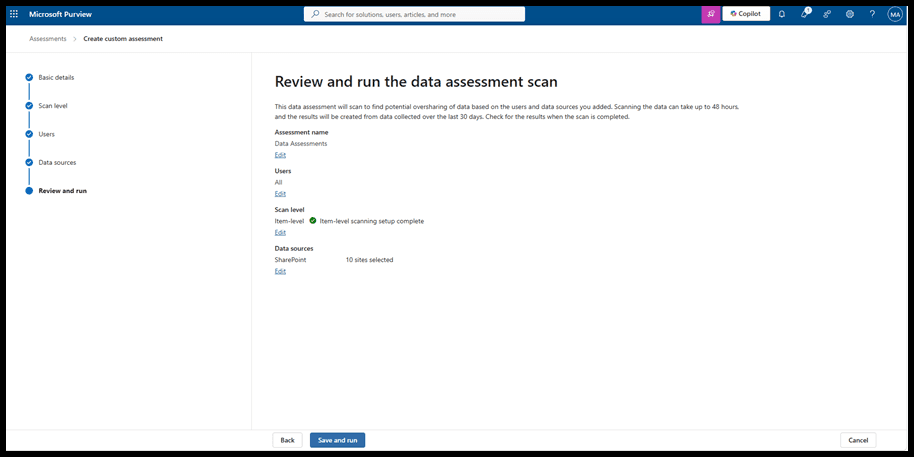
Step 1: Navigate to Microsoft Purview Portal → DSPM → Discover → Data Risk Assessments → Create Custom Assessment
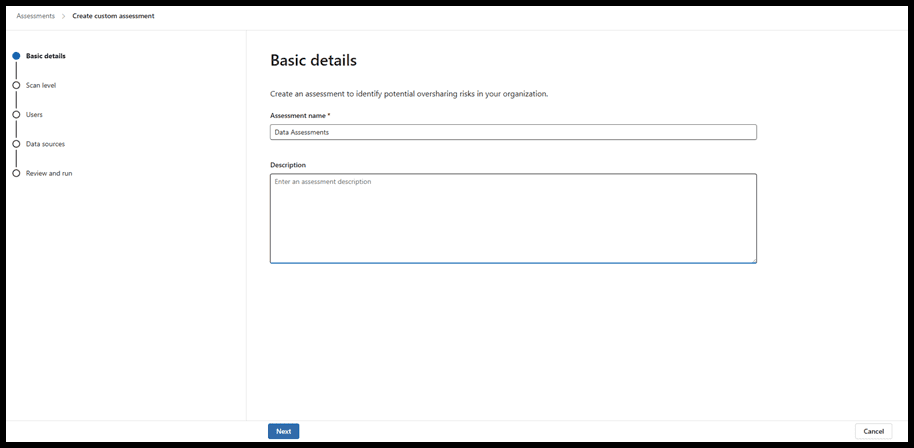
Step 2: Provide the Assessment name and click on Next
Step 3: A one-time authentication setup is required to enable Item-Level Scanning.
Step 4: Navigate to the Entra Admin Portal to create and configure the Registered app with the Following settings:
Supported account types: Accounts in this organizational directory only
API permissions: Microsoft APIs > Microsoft Graph > Application permissions
You’ll also need the registered application’s ID, which is displayed as Application (client) ID in the Overview tab.
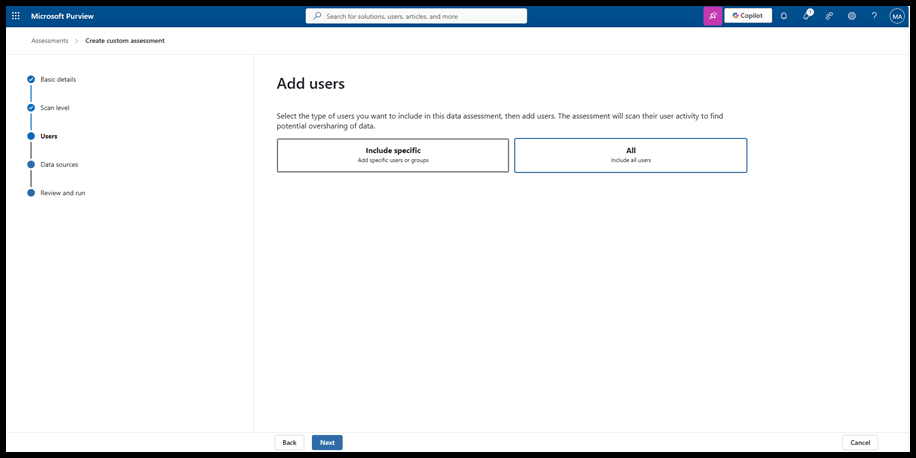
Step 5: Select All Users or specific users to include in the assessment.
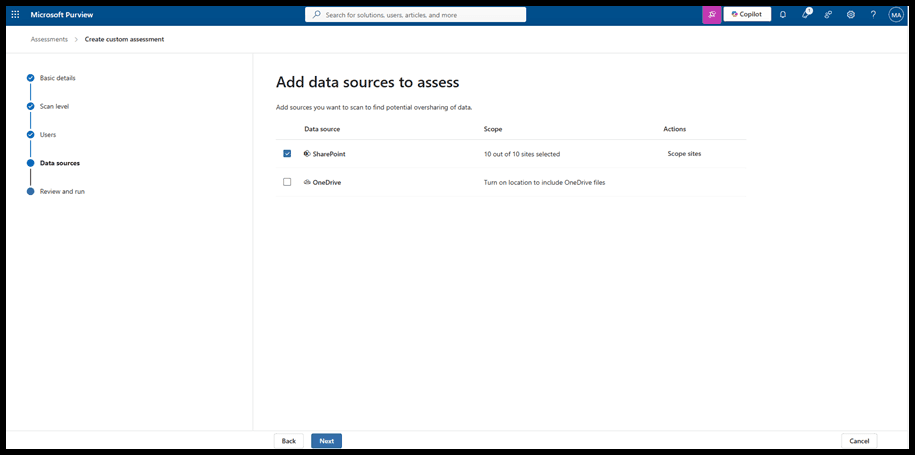
Step 6: Add the Microsoft 365 data source and select up to 10 SharePoint sites for Item-Level Scanning.
Step 7: Review the assessment configuration and select Run Assessment
Item-Level Remediation Actions
After Item-Level Scanning completes, administrators can perform several remediation actions directly from Microsoft Purview.
These include:
Resolve – Mark the item as reviewed if no action is required.
Apply Sensitivity Label – Label files that are unlabeled or require stronger protection.
Notify Site Owner – Send an email notification informing the site owner about potential oversharing.
Remove Sharing Link – Remove anonymous or external sharing links to prevent unauthorized access.
These actions help organizations quickly reduce oversharing risks without manually reviewing every file.
Current Limitations
At the time of writing, Microsoft documents the following limits:
Maximum 200,000 items can be scanned per location.
Item-Level Scanning supports SharePoint only.
OneDrive is not currently supported for Item-Level Scanning.
A maximum of 10 SharePoint sites can be selected in a single Item-Level Custom Assessment.
Custom Assessment results do not refresh automatically. A new assessment must be created to view updated results.
Data Risk Assessments play a key role in helping organizations prepare their Microsoft 365 environment for secure AI adoption by reducing oversharing risks before sensitive information can be surfaced by Microsoft 365 Copilot.